

Prerequisites
Before you begin, ensure you have:- A Papermap account with workspace access
- Connected data sources with tenant-identifiable tables
- Administrative permissions in your workspace
Configuration Steps
Step 1: Access Workspace Settings
1
Log in to Papermap
Navigate to papermap.ai and sign in with your credentials.
2
Navigate to your workspace
Select the workspace where you want to enable multi-tenancy.
3
Open Settings
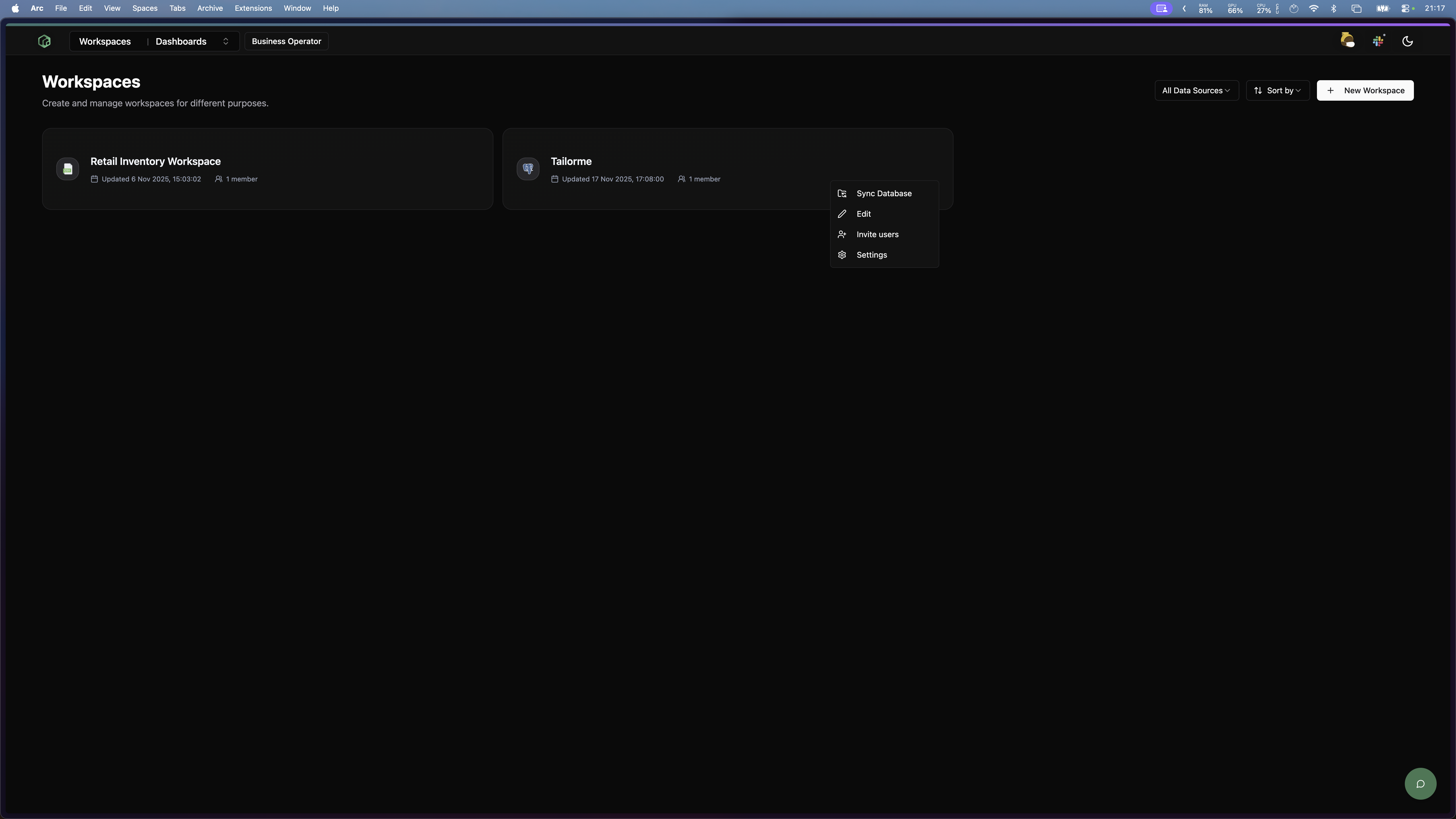
Click on Settings in the drop-down options on the workspace card to access workspace configuration.
Step 2: Select Your Tenant Table
The tenant table is the core table that identifies and separates your different tenants. This could be acustomers, organizations, or users table - depending on your data model.
1
View available tables
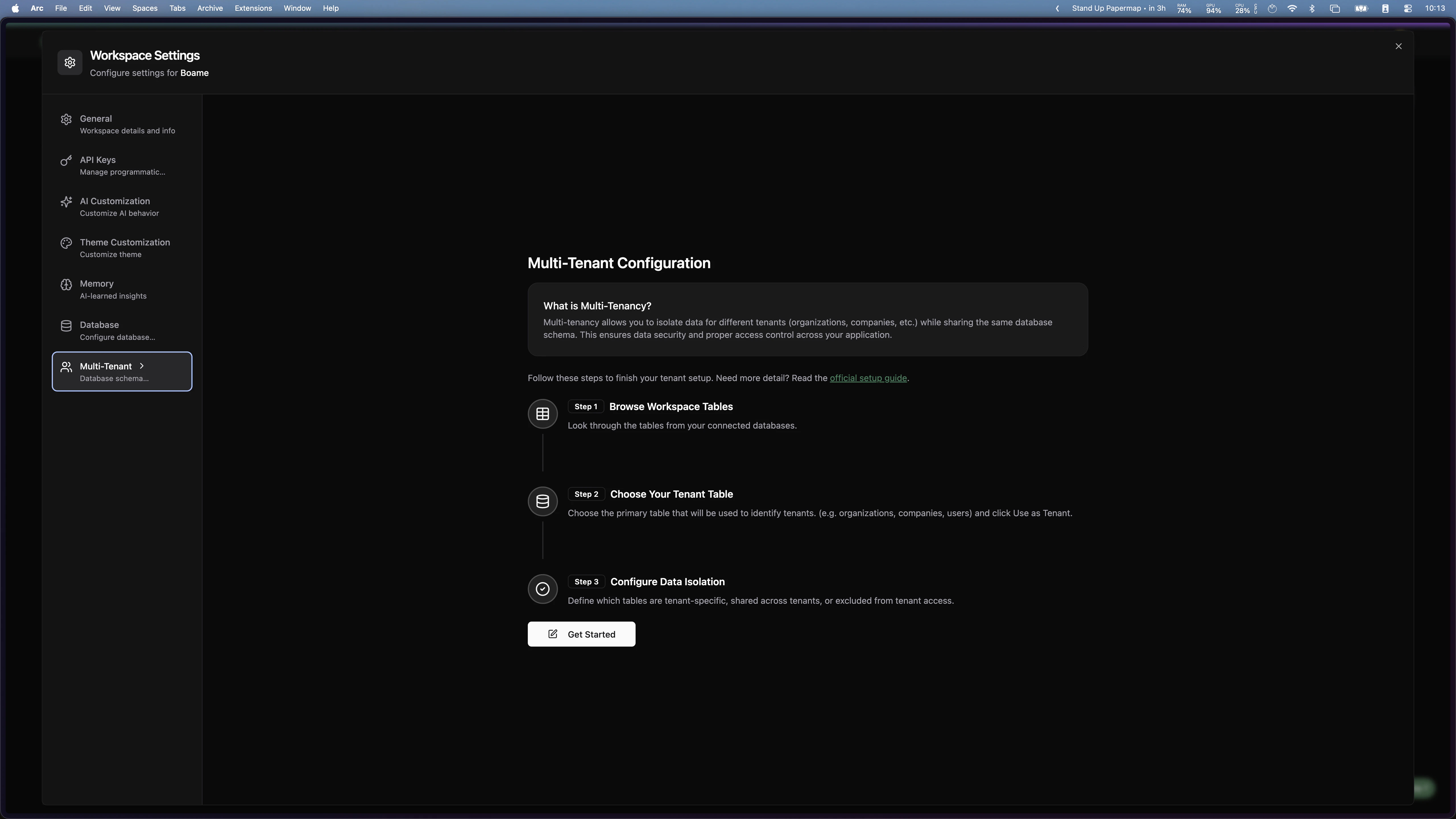
In the Multi-Tenant configuration page, you’ll see a list of available tables from your connected data sources.
2
Choose your tenant table
Find the table you want to use as your tenant identifier (e.g.,
customers, organizations, users).3
Set as tenant table
Click Use as Tenant on your chosen table.
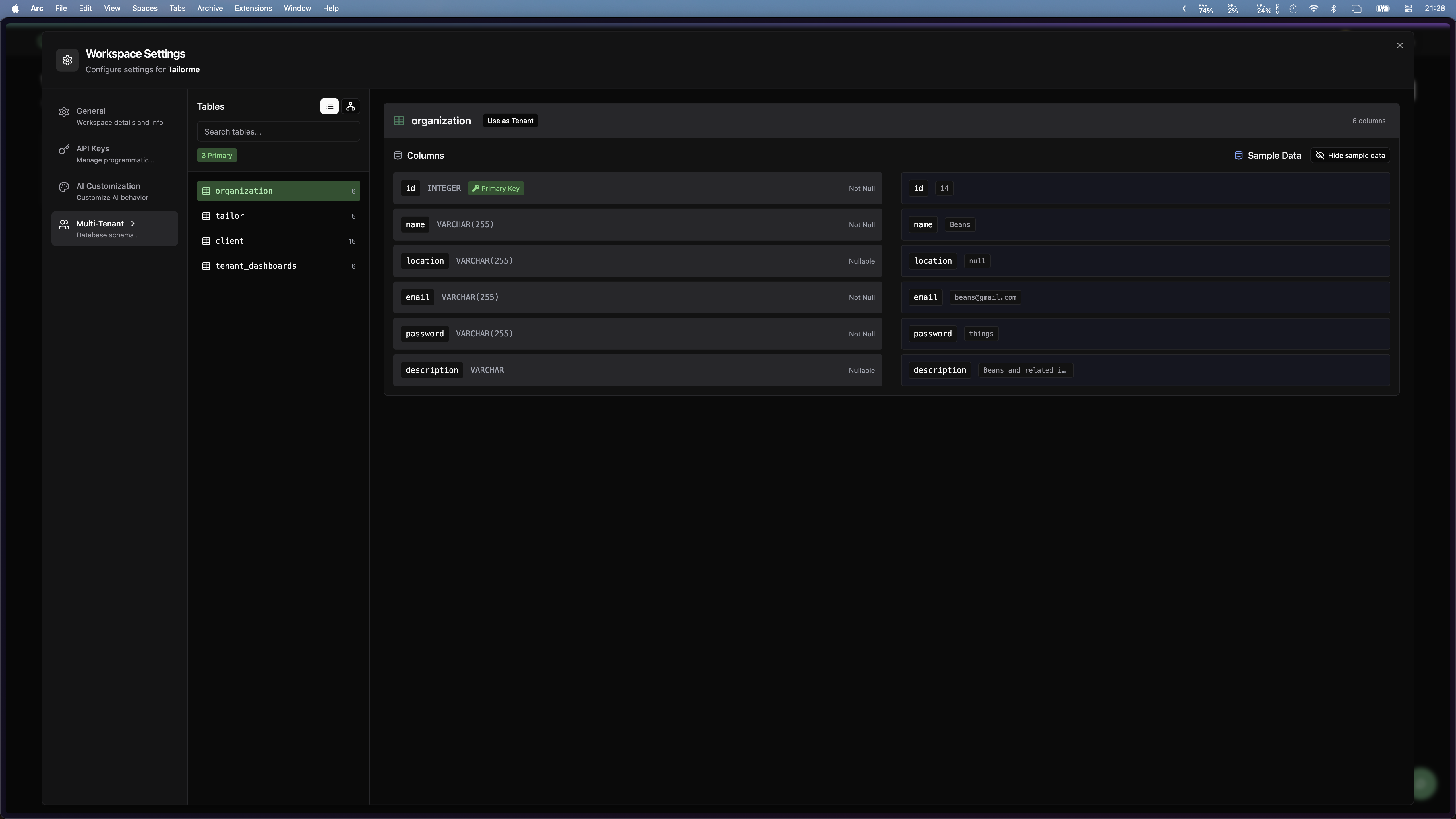
In this example, we’re using the
organization table as our tenant identifier.Step 3: Understand and Organize Your Tables
You will be redirected to the Tenant Table Configuration page. Papermap automatically analyzes your schema and sorts every table into one of three categories based on how it relates to the tenant table.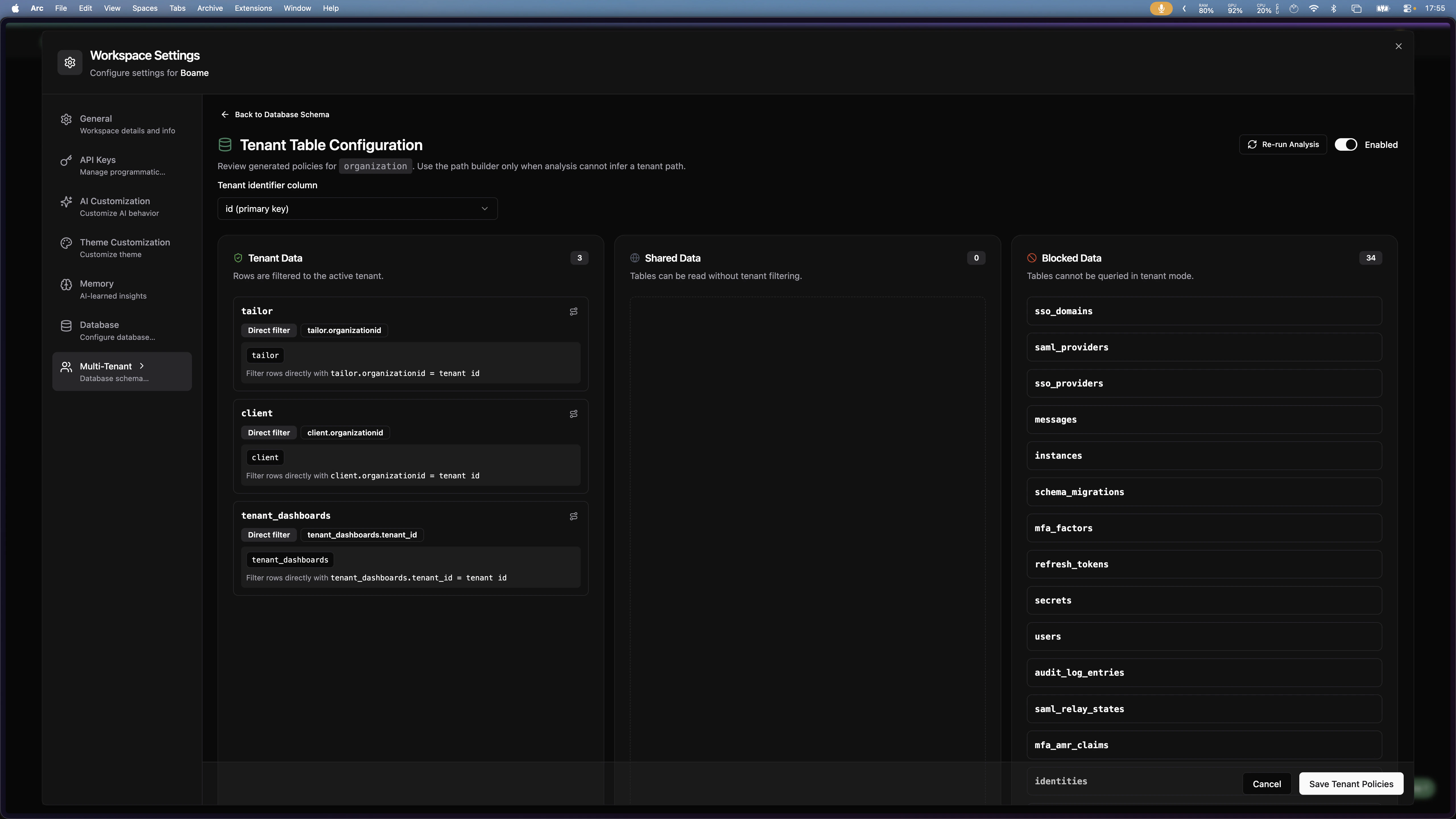
- Tenant identifier column — the column on the tenant table (usually the primary key) that the tenant id from API requests will be compared against.
- Re-run Analysis — re-runs the auto-categorization. Use this after schema changes.
- Enabled toggle — turns multi-tenant enforcement on or off for this workspace.
Table Categories Explained
Tenant Data
Tenant Data
Tables whose rows are filtered to the active tenant on every query.Papermap fills this category in two ways:
- Direct filter — the table contains a column that points to the tenant table (e.g.
tailor.organizationid). Filtering is applied directly. - Join path — the table has no direct tenant column, so a chain of joins is used to reach the tenant id. You define this chain using the path builder (see Step 4).
Blocked Data
Blocked Data
Tables that cannot be queried at all in tenant mode.Examples:
- Auth tables (
users,sso_providers,mfa_factors,refresh_tokens) - Audit logs and system metadata
- Internal admin or billing tables
Organize Your Tables
Review the auto-categorization and adjust anything that doesn’t match your security requirements.1
Review categories
Check which tables Papermap placed in Tenant Data, Shared Data, and Blocked Data.
2
Move tables as needed
Drag and drop tables between the three columns to override the automatic placement.
3
Secure sensitive data
Move anything tenants should never see (admin tables, audit logs, billing) into Blocked Data.
4
Mark shared resources
Put catalogs, lookups, and reference tables into Shared Data so they remain readable across tenants.
5
Save
Click Save Tenant Policies at the bottom of the page.
In this example, business tables sit in Tenant Data while auth and system tables are auto-placed in Blocked Data.
Step 4: Define a Tenant Access Path (when needed)
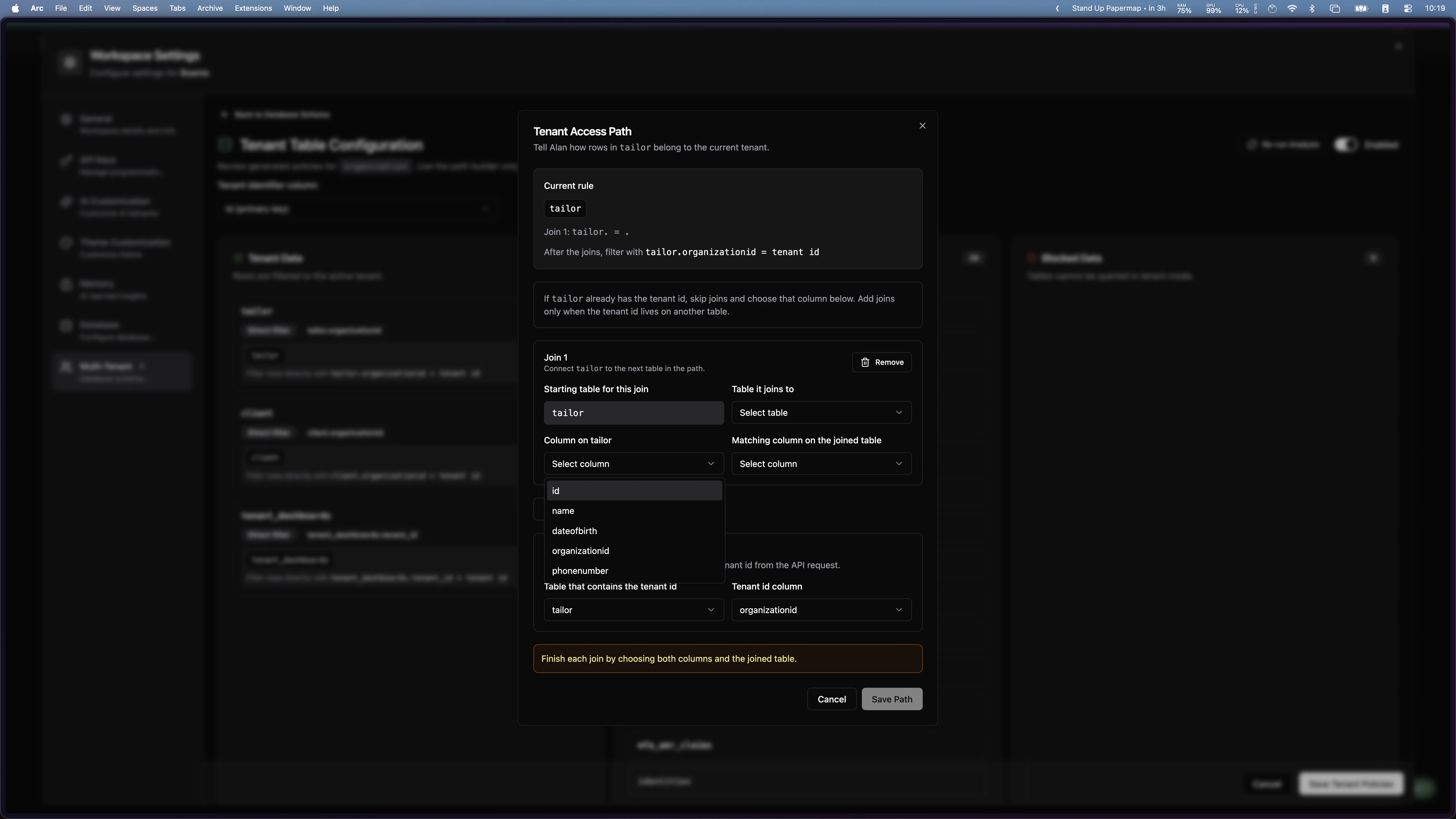
Some tables in Tenant Data don’t contain the tenant id directly. For these, you need to tell Papermap how to reach the tenant id by joining through one or more other tables.1
Open the path builder
On the table card in Tenant Data, click the join/path icon in the top-right corner. The Tenant Access Path modal opens.
2
Configure Join 1
Set the four fields under Join 1:
- Starting table for this join — the table you’re configuring.
- Table it joins to — the next table in the path toward the tenant table.
- Column on <table> — the column on the starting table used for the join.
- Matching column on the joined table — the column on the joined table that matches.
3
Add more joins if needed
Click + Add Join Table for multi-hop paths (e.g.
order_items → orders → organization). Repeat the four fields for each hop.4
Set the tenant id location
Under Tenant id location, choose the table and column at the end of the path that hold the actual tenant id.
5
Save the path
Click Save Path. The card now shows the resolved filter rule.
Step 5: Create API Keys
After organizing your tables, create API keys for tenant access.1
Save configuration
Click Configure as Tenant Table to save your table organization.
2
Navigate to API Keys
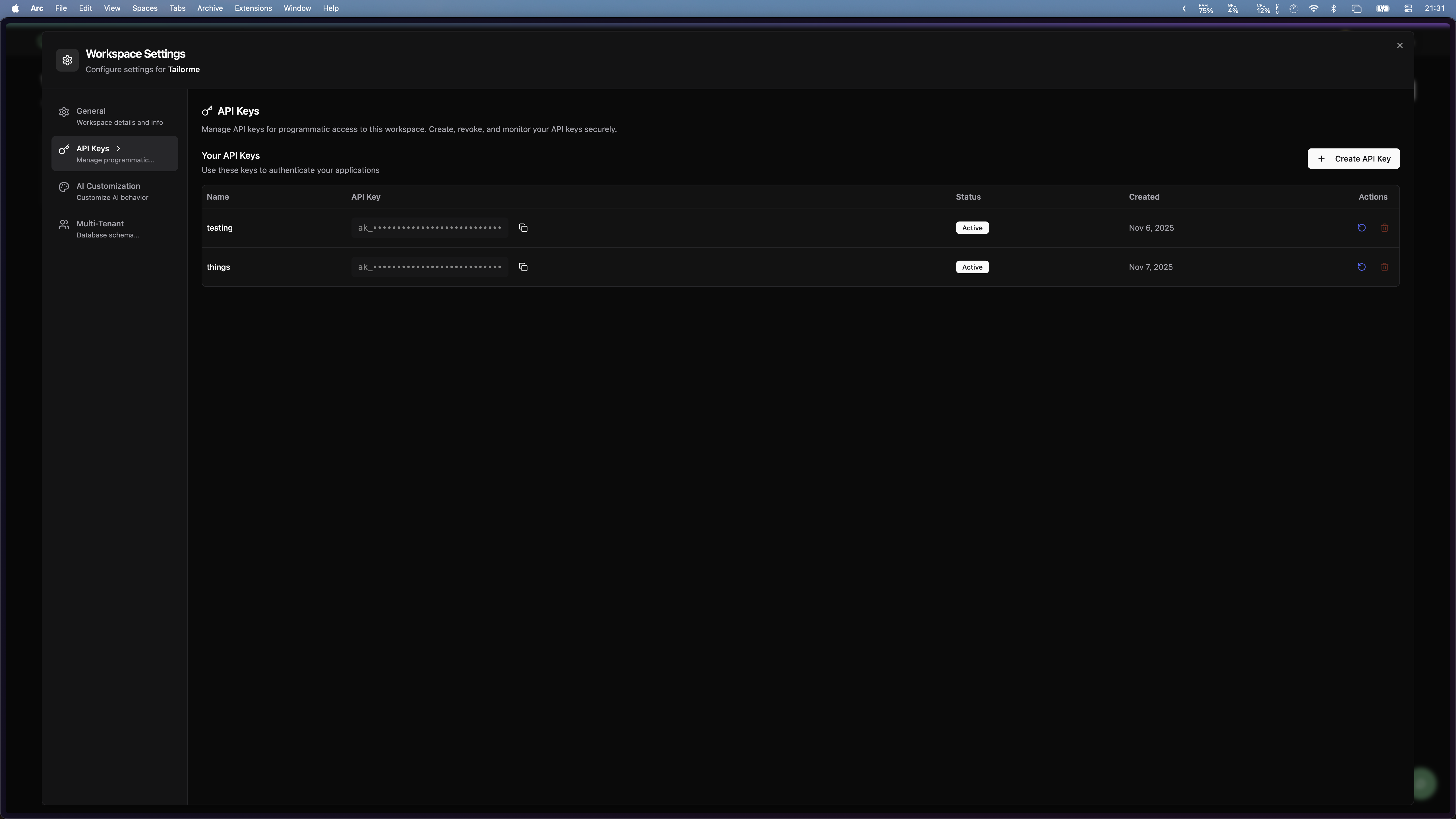
Go back to Settings → API Keys.
3
Generate new key
Click Create API Key to generate credentials.
4
Save credentials
Copy and securely store both the API Key and Secret.
Step 6: Complete Configuration
Your multi-tenancy setup is now complete!What Happens Next?
Once configured, your multi-tenant environment will operate as follows:Data Isolation
Each tenant only sees rows from Tenant Data tables that belong to them — whether filtered by a direct column or resolved through a join path.
Shared Access
Shared Data tables remain accessible to all tenants for common reference data.
Security
Blocked Data tables are completely hidden from tenant queries.
Automatic Filtering
Queries are automatically scoped to the tenant context.
Next Steps
Backend Implementation
Implement secure tenant dashboard management with HMAC authentication
Tenant Management
Learn how to manage tenant lifecycles and operations
Troubleshooting Setup
Can't find my tenant table
Can't find my tenant table
- Ensure your data source is properly connected
- Verify the table exists and has the expected schema
- Check that you have read permissions on the table
Tables not categorizing correctly
Tables not categorizing correctly
- Verify foreign key relationships in your database
- Manually move tables to the correct categories
- Check table relationships in your data source
API key generation failed
API key generation failed
- Ensure you have administrative permissions
- Check that you saved the tenant table configuration first
- Try refreshing the page and generating again