> ## Documentation Index
> Fetch the complete documentation index at: https://docs.papermap.ai/llms.txt
> Use this file to discover all available pages before exploring further.

# Papermap Apps

> Open Apps from the bar, then create bookmarks, notes, skills, document extractions, and data entry recipes.

# Apps

Alan's Apps now live in the bar. Use them to open the right tool, then save and review bookmarked chats, notes, skills, extractions, and data entry recipes.

## Open Apps

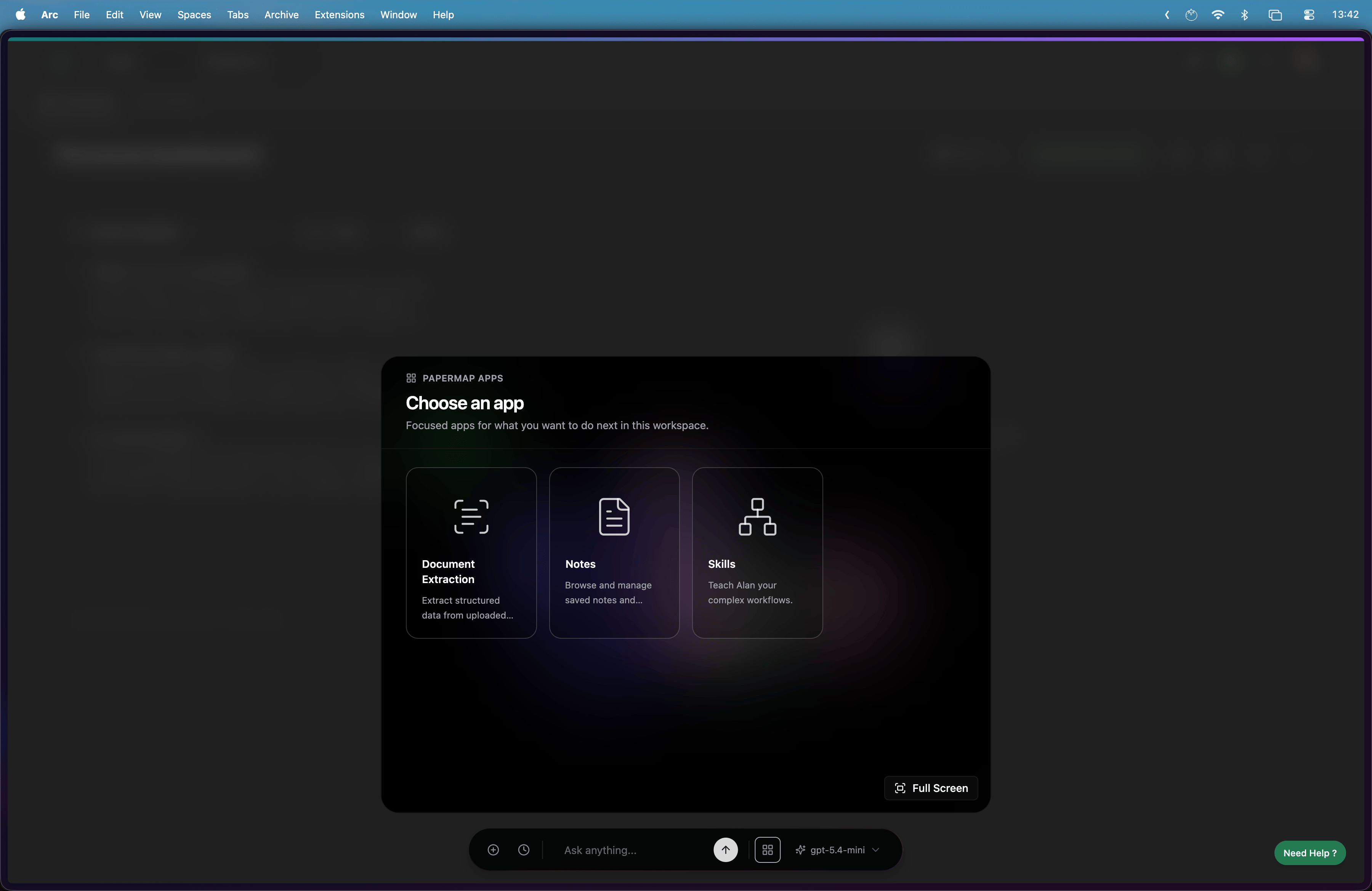
Click the **Apps** button on the bar to open the app picker.
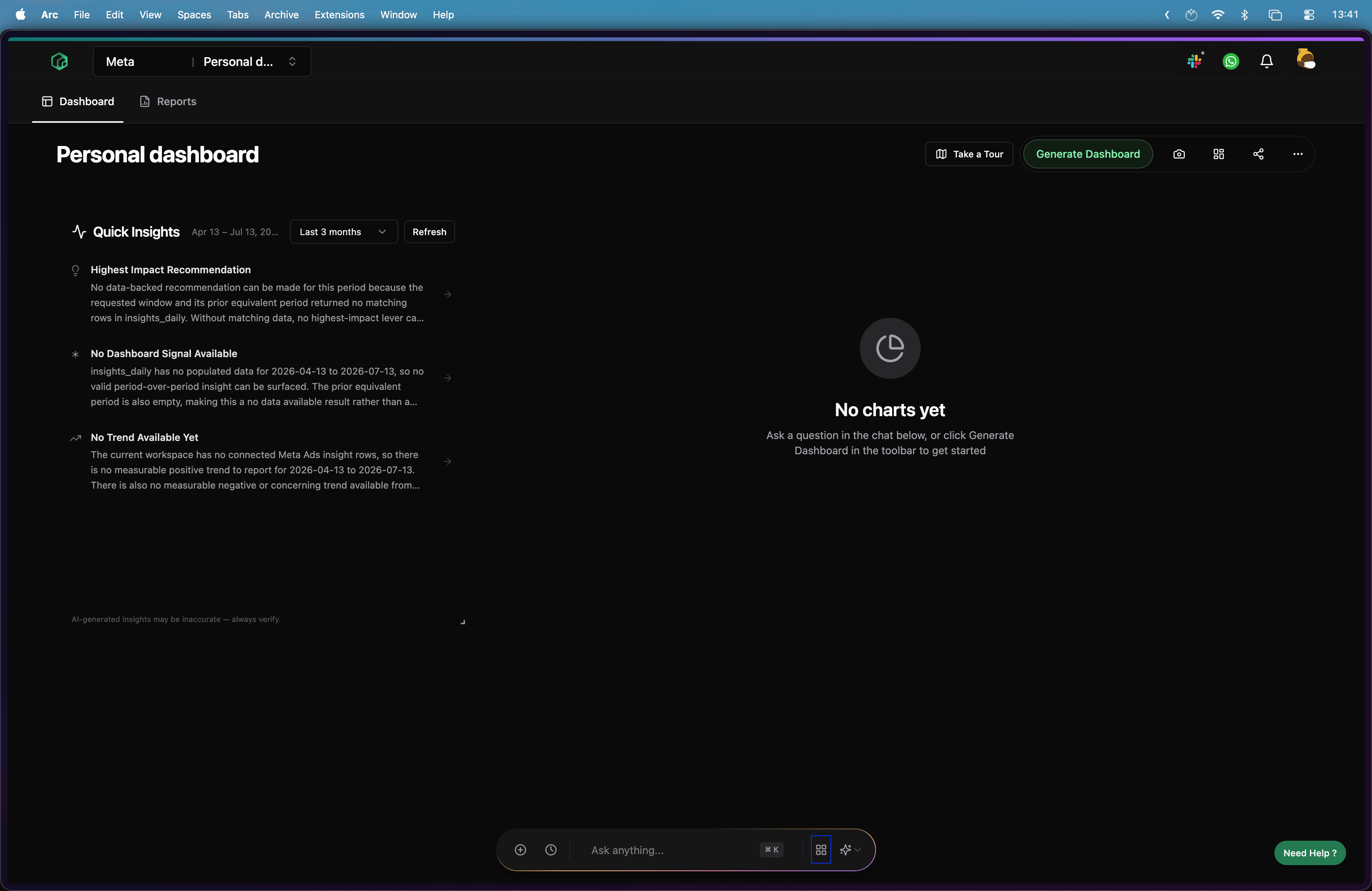
<Frame>
  <img src="https://mintcdn.com/papermap/Oxoh6AiWL3bk5Nkq/features/images/click_to_view_apps.png?fit=max&auto=format&n=Oxoh6AiWL3bk5Nkq&q=85&s=698b0165d178fbacbbcf768f516ff1c4" alt="Open the Apps menu" width="3600" height="2338" data-path="features/images/click_to_view_apps.png" />
</Frame>

Choose the app you want to use.

<Frame>
  <img src="https://mintcdn.com/papermap/Oxoh6AiWL3bk5Nkq/features/images/choose_app.png?fit=max&auto=format&n=Oxoh6AiWL3bk5Nkq&q=85&s=8b557fc4db6eafdf72461947a14f028e" alt="Choose an app from the Apps menu" width="3600" height="2338" data-path="features/images/choose_app.png" />
</Frame>

## Bookmarks

### Create a Bookmark

Click the **bookmark** icon on any Alan response to save it.
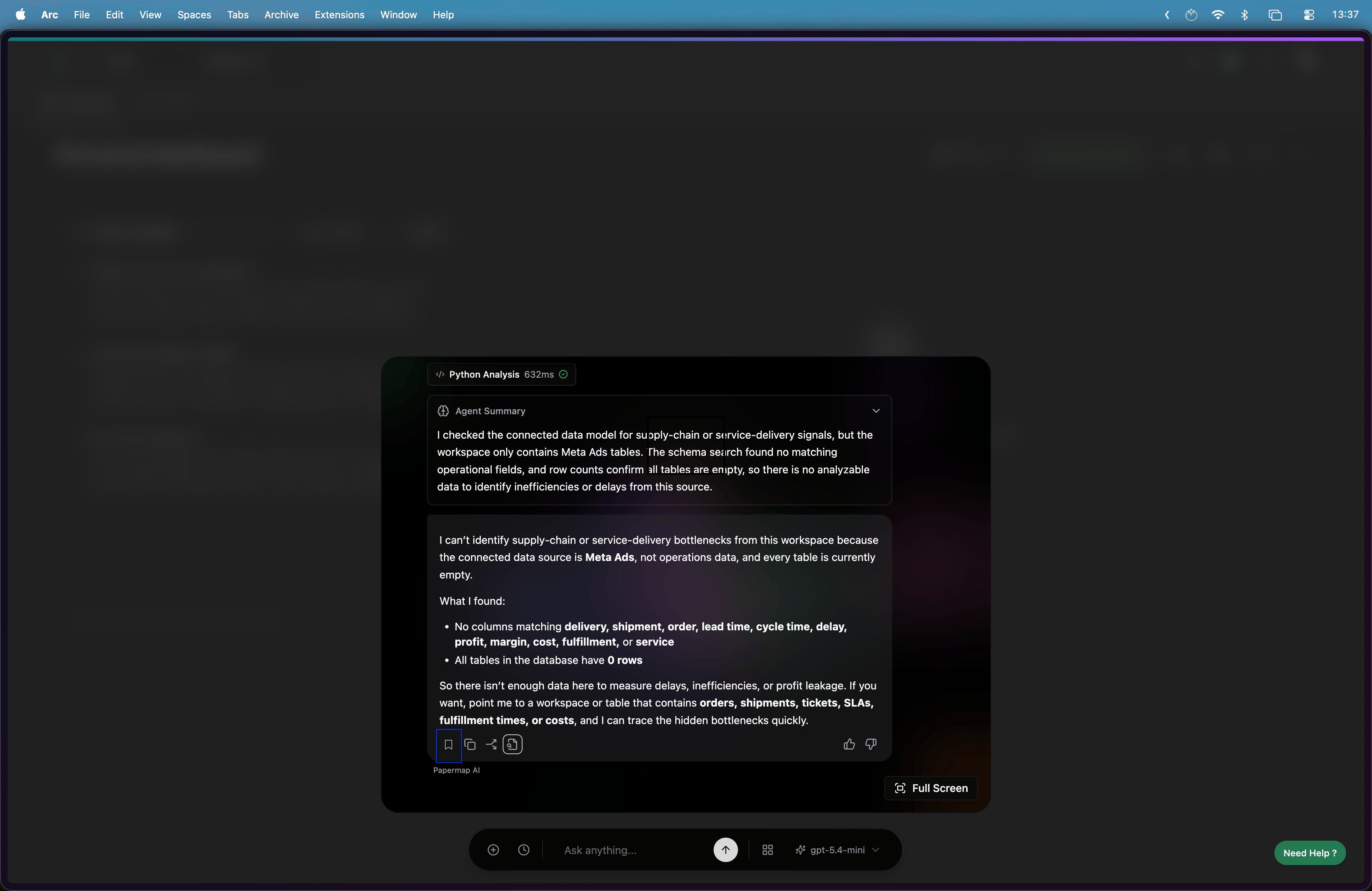
<Frame>
  <img src="https://mintcdn.com/papermap/Oxoh6AiWL3bk5Nkq/features/images/click_to_add_chat_as_bookmark.png?fit=max&auto=format&n=Oxoh6AiWL3bk5Nkq&q=85&s=1c403e669f6ac78598d3ea72383a7ed9" alt="Bookmark a chat response" width="3600" height="2338" data-path="features/images/click_to_add_chat_as_bookmark.png" />
</Frame>

### View Bookmarks

Open **Notes** from Apps to see saved bookmarks and notes.
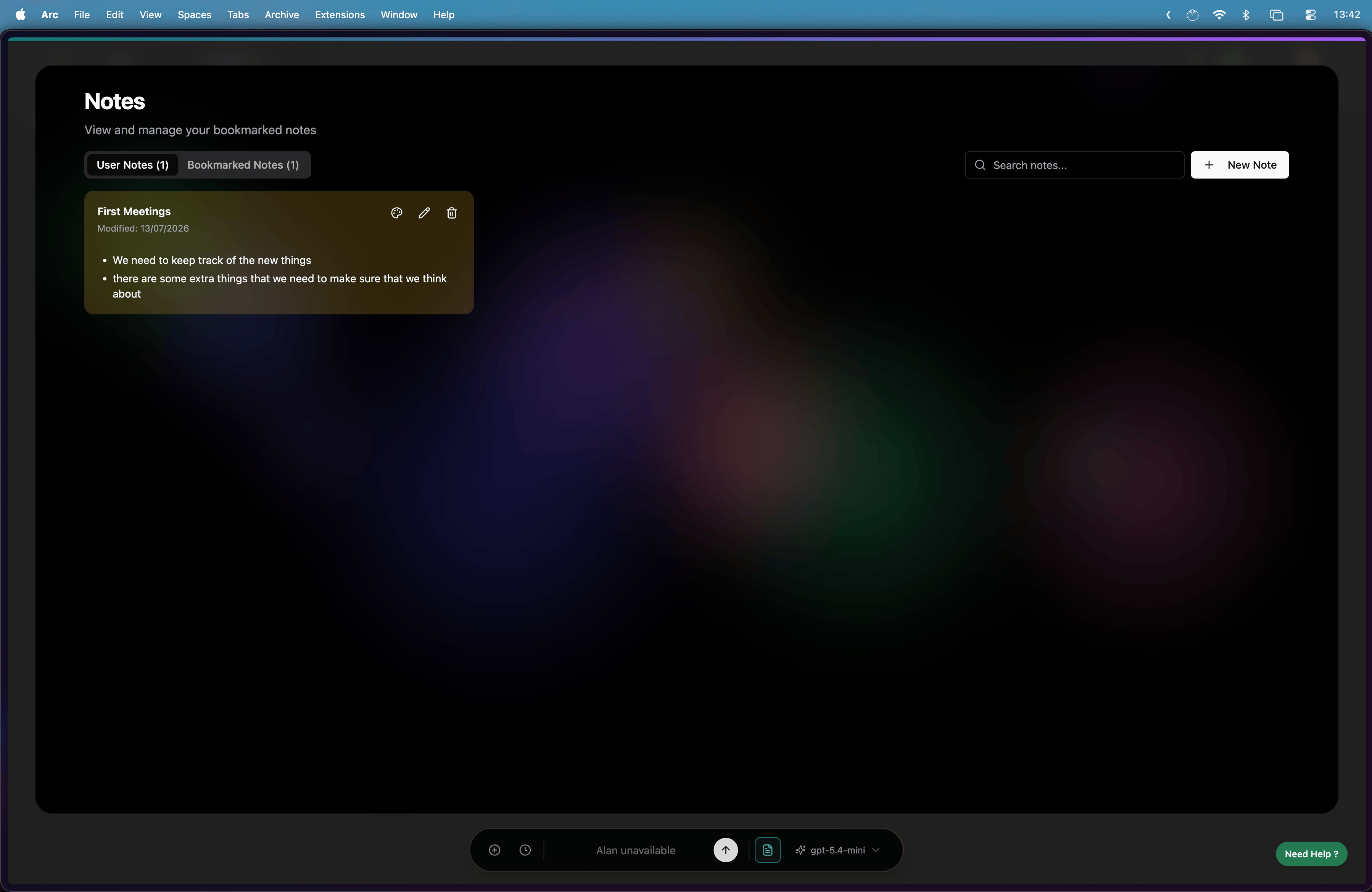
<Frame>
  <img src="https://mintcdn.com/papermap/Oxoh6AiWL3bk5Nkq/features/images/view_all_generic_notes.png?fit=max&auto=format&n=Oxoh6AiWL3bk5Nkq&q=85&s=1fa690a915c3dbe79a42cee6b62335f6" alt="View all notes in Notes" width="3596" height="2338" data-path="features/images/view_all_generic_notes.png" />
</Frame>

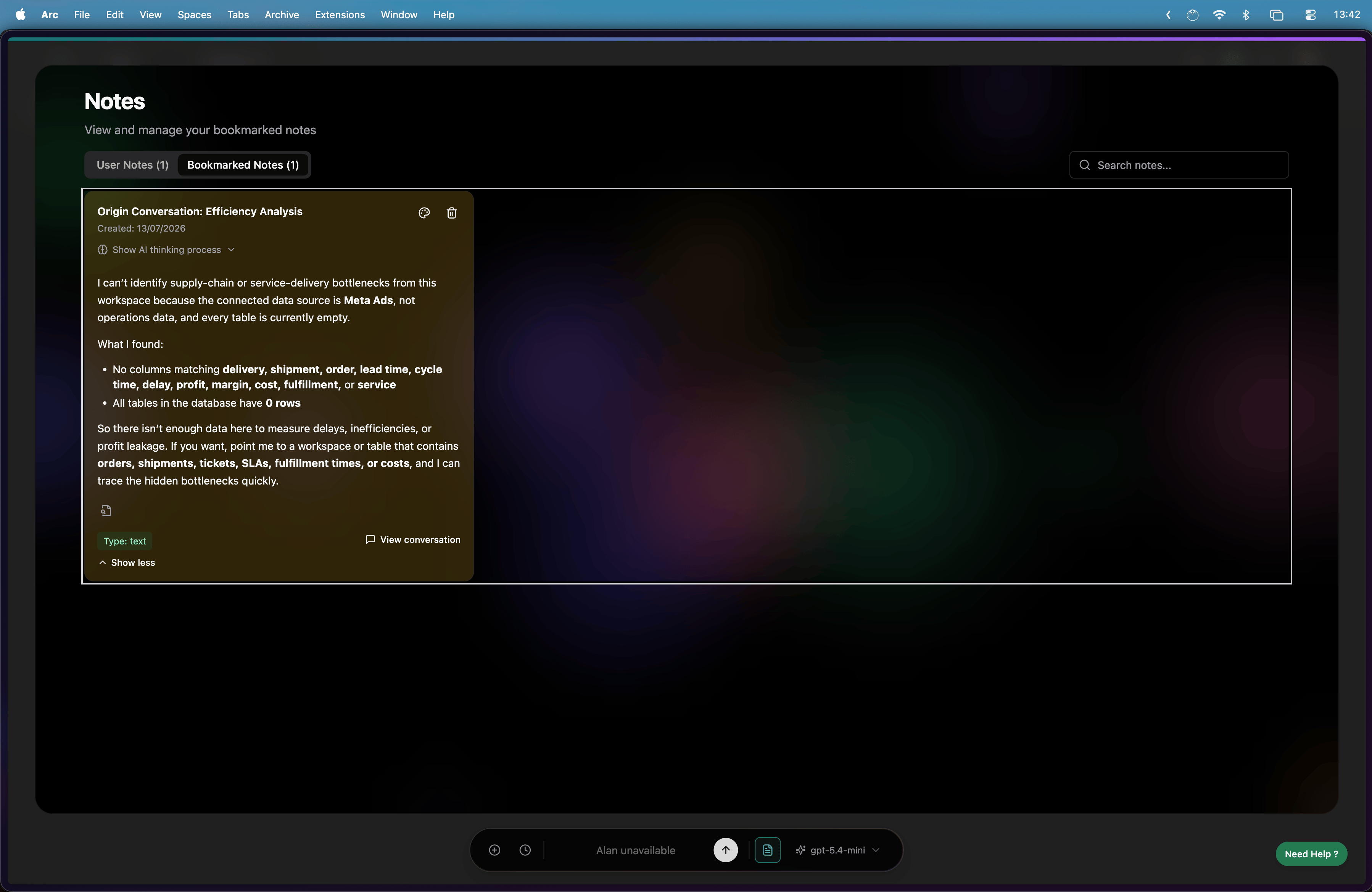
Open a bookmarked note from an Alan chat when you want to review the original conversation.
<Frame>
  <img src="https://mintcdn.com/papermap/Oxoh6AiWL3bk5Nkq/features/images/view_bookmarked_note_from_ai_chat.png?fit=max&auto=format&n=Oxoh6AiWL3bk5Nkq&q=85&s=c7eba39d08a0fd3f9fe4f295adb970e7" alt="View a bookmarked note from Alan chat" width="3596" height="2338" data-path="features/images/view_bookmarked_note_from_ai_chat.png" />
</Frame>

## Skills

### Create a Skill

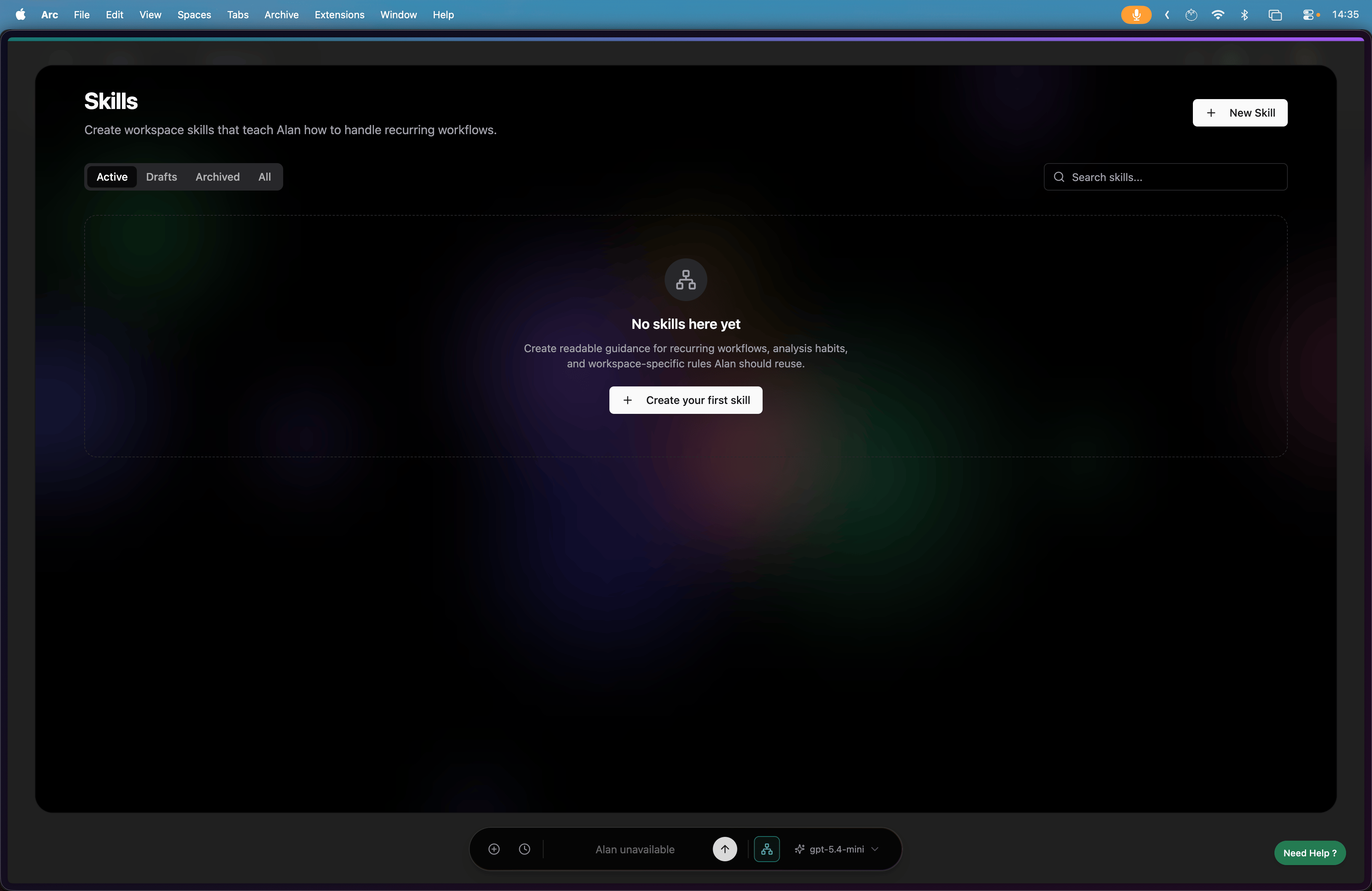
Open the Skills app to create a new skill for Alan.
<Frame>
  <img src="https://mintcdn.com/papermap/Oxoh6AiWL3bk5Nkq/features/images/add_skill_page.png?fit=max&auto=format&n=Oxoh6AiWL3bk5Nkq&q=85&s=ec3d39473963017f8df6a2564da75d5a" alt="Open the Skills app" width="3600" height="2338" data-path="features/images/add_skill_page.png" />
</Frame>

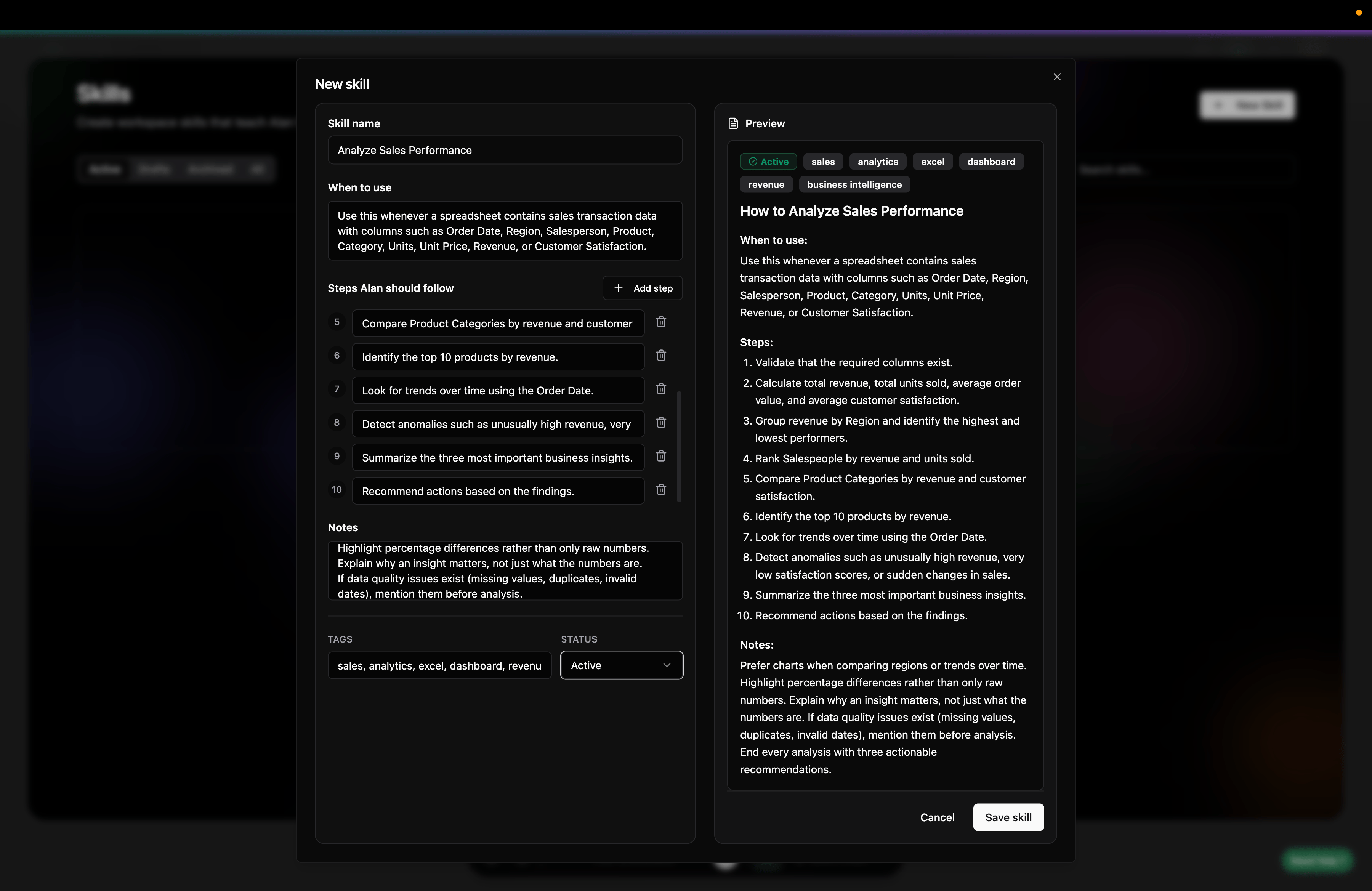
Click **Create your first skill** to start defining the skill steps.
<Frame>
  <img src="https://mintcdn.com/papermap/Oxoh6AiWL3bk5Nkq/features/images/create_skill_steps.png?fit=max&auto=format&n=Oxoh6AiWL3bk5Nkq&q=85&s=00f5a876b87def1b4301e466a2f6d758" alt="Create skill steps" width="3600" height="2338" data-path="features/images/create_skill_steps.png" />
</Frame>

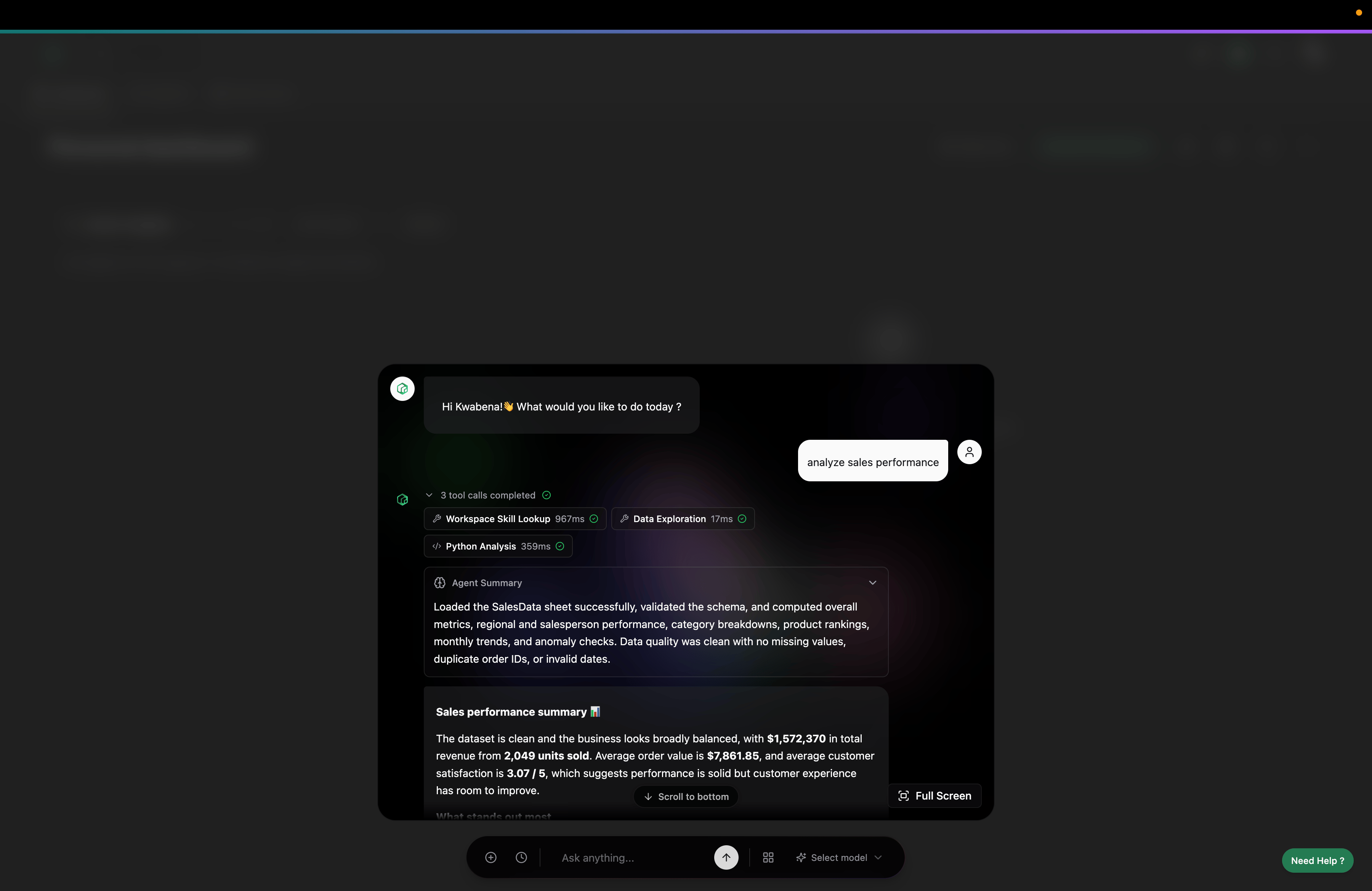
Once saved, Alan can use the skill while answering your chats.
<Frame>
  <img src="https://mintcdn.com/papermap/Oxoh6AiWL3bk5Nkq/features/images/skill_being_used_by_alan.png?fit=max&auto=format&n=Oxoh6AiWL3bk5Nkq&q=85&s=f0d6976dbcc307596d61aa9e08ad5072" alt="Alan using a skill in chat" width="3600" height="2338" data-path="features/images/skill_being_used_by_alan.png" />
</Frame>

## Document Extraction

Use Document Extraction to upload one or more PDFs, tell Alan what to extract, and review the results before writing them to a sheet.
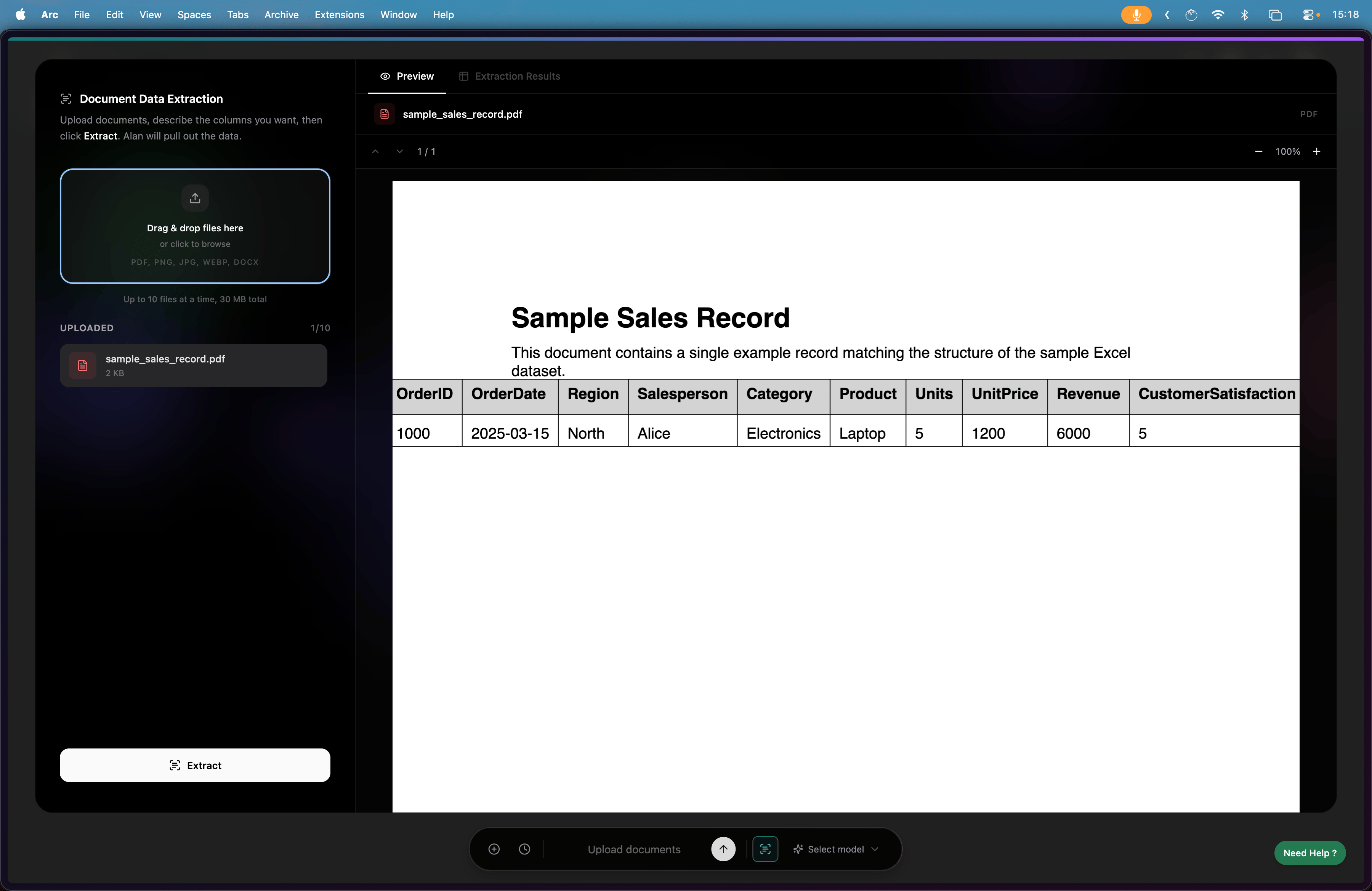
<Frame>
  <img src="https://mintcdn.com/papermap/Oxoh6AiWL3bk5Nkq/features/images/upload_folder_to_extract_from.png?fit=max&auto=format&n=Oxoh6AiWL3bk5Nkq&q=85&s=aa5856b9edf90e730b2ae8a67e13ce49" alt="Upload documents for extraction" width="3600" height="2338" data-path="features/images/upload_folder_to_extract_from.png" />
</Frame>

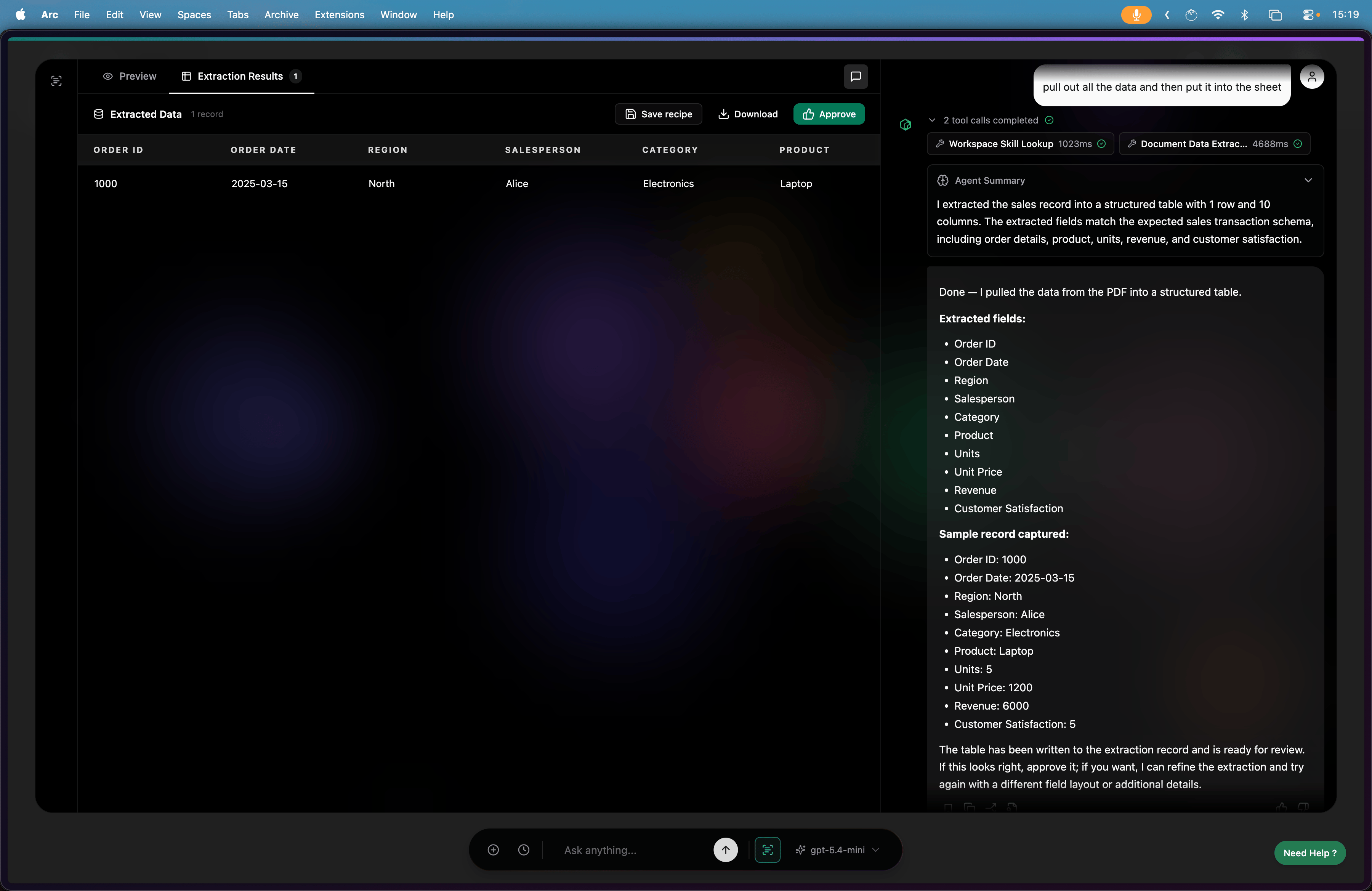
Describe what Alan should extract and how it should be structured.
<Frame>
  <img src="https://mintcdn.com/papermap/Oxoh6AiWL3bk5Nkq/features/images/tell_alan_what_to_extract_and_how.png?fit=max&auto=format&n=Oxoh6AiWL3bk5Nkq&q=85&s=f2881ca062fb24f9f77a35217dfe3a98" alt="Tell Alan what to extract and how" width="3600" height="2338" data-path="features/images/tell_alan_what_to_extract_and_how.png" />
</Frame>

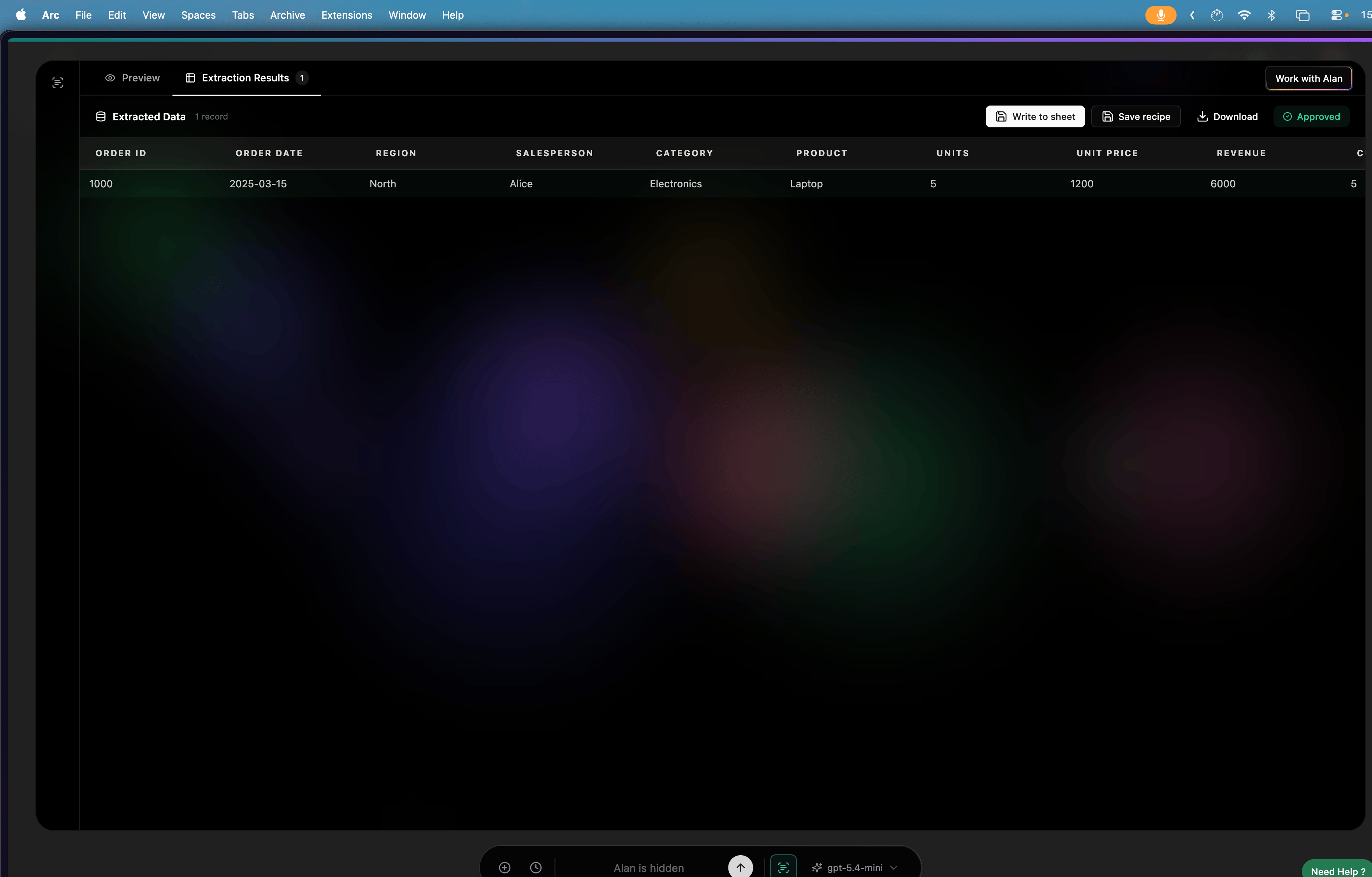
Review the extracted rows before approving them.
<Frame>
  <img src="https://mintcdn.com/papermap/Oxoh6AiWL3bk5Nkq/features/images/extraction_results.png?fit=max&auto=format&n=Oxoh6AiWL3bk5Nkq&q=85&s=8c44cd4af6bb1bec56d98fc59cf96dba" alt="Review extraction results" width="3524" height="2252" data-path="features/images/extraction_results.png" />
</Frame>

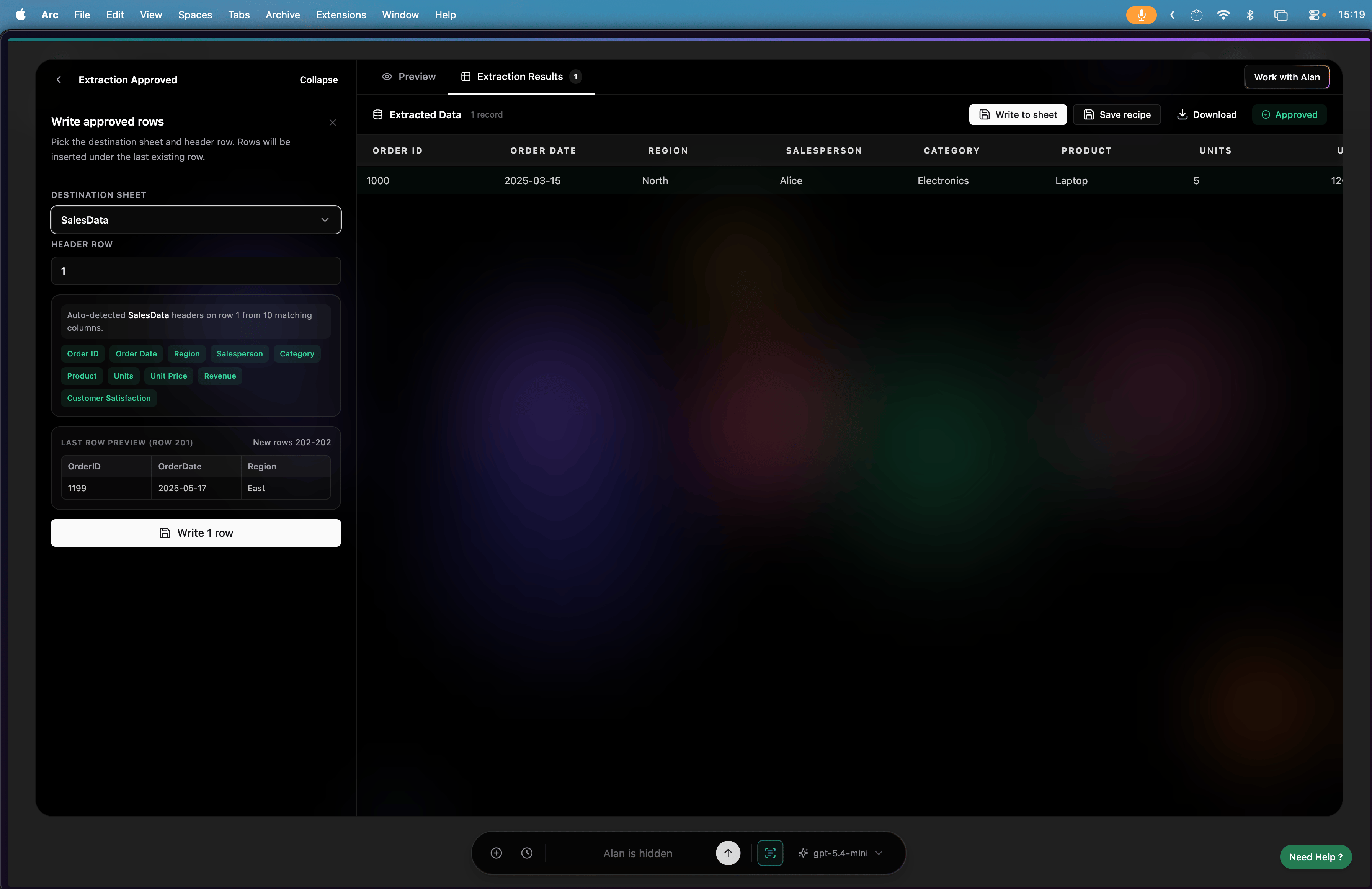
After you verify the results, Alan can write them to your sheet.
<Frame>
  <img src="https://mintcdn.com/papermap/Oxoh6AiWL3bk5Nkq/features/images/writing_extraction_results_to_sheet.png?fit=max&auto=format&n=Oxoh6AiWL3bk5Nkq&q=85&s=107f4bab433d4c36bafb5bd123294f23" alt="Write extraction results to sheet" width="3584" height="2322" data-path="features/images/writing_extraction_results_to_sheet.png" />
</Frame>

## Data Entry

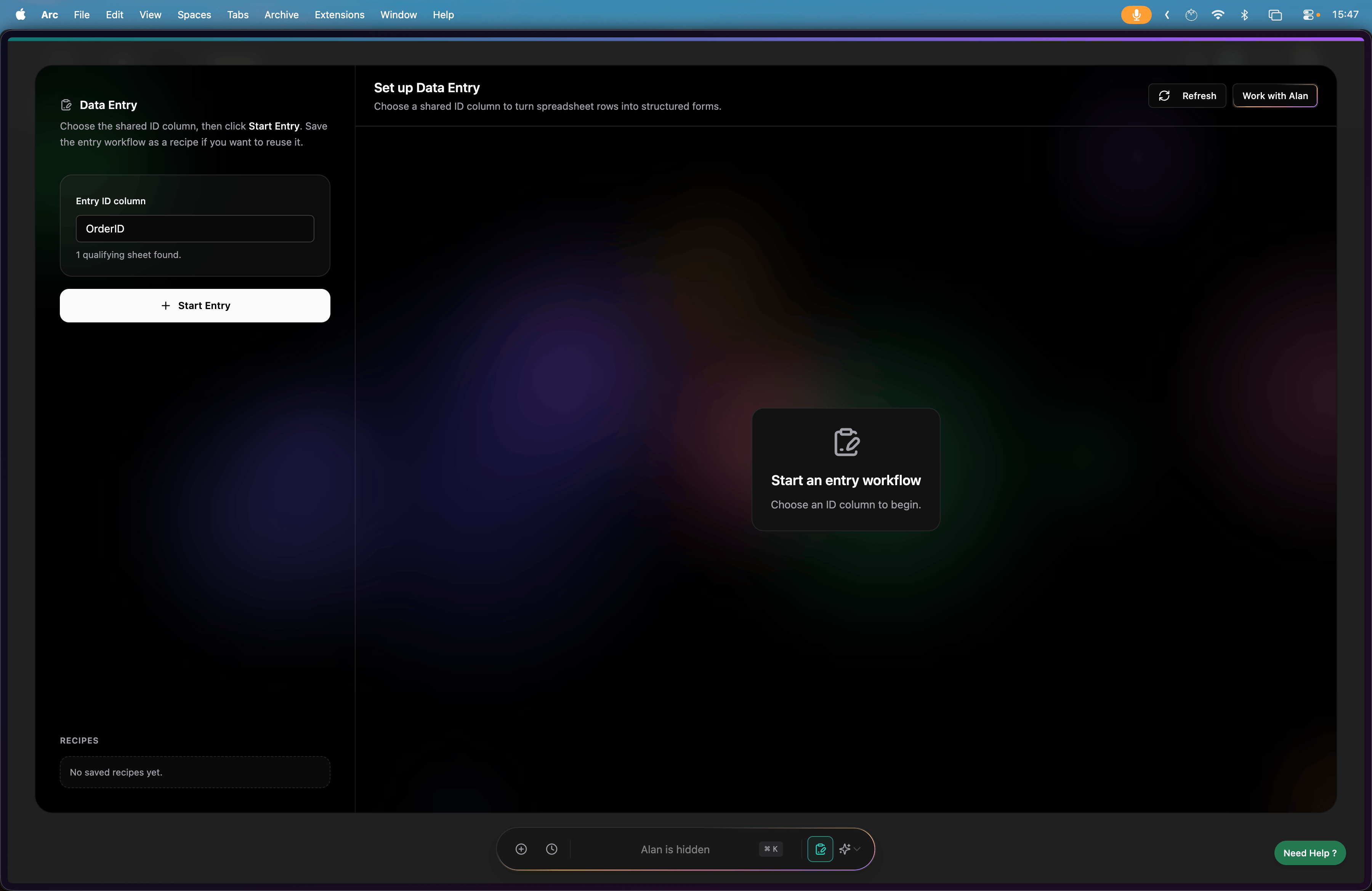
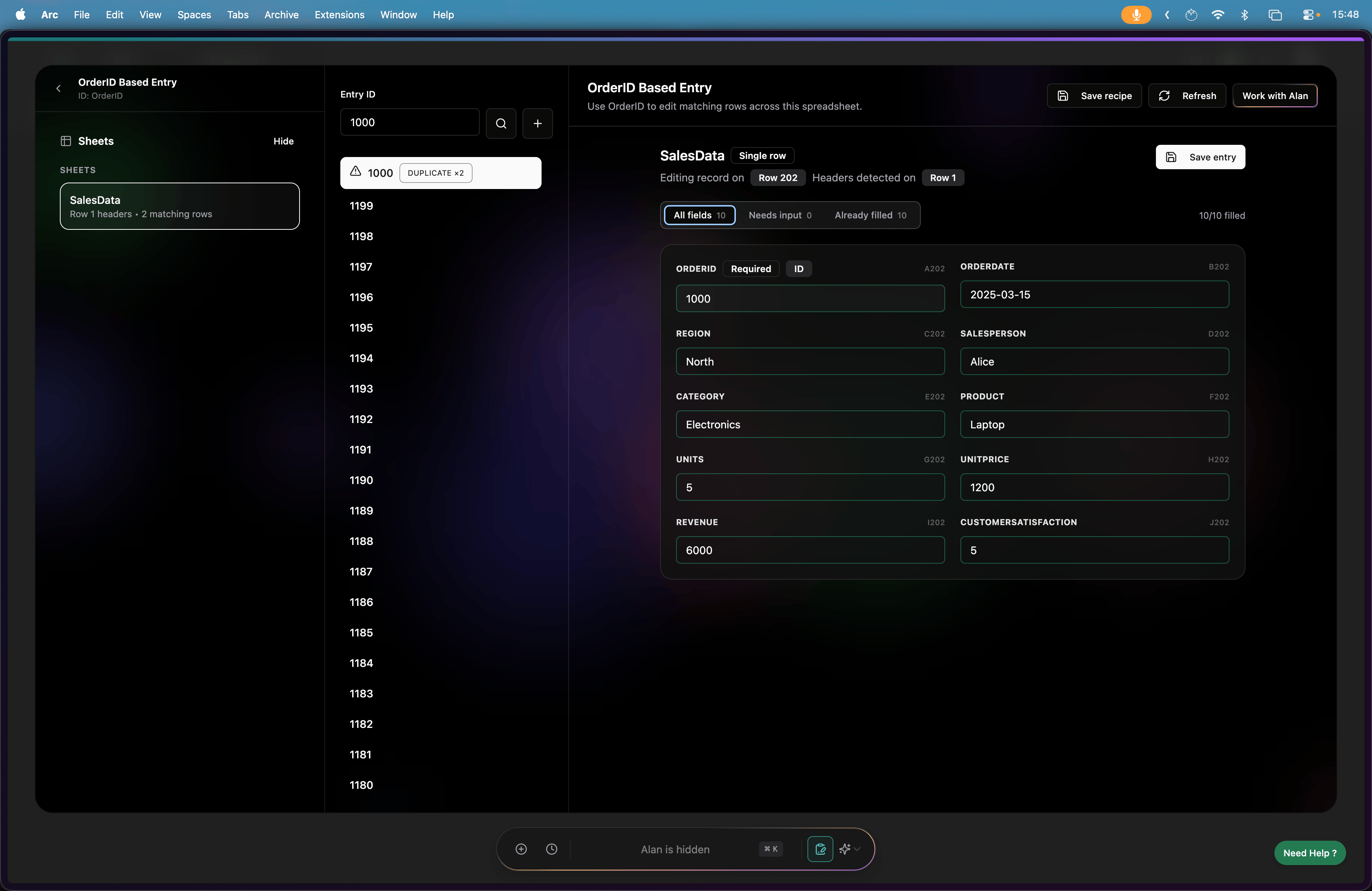
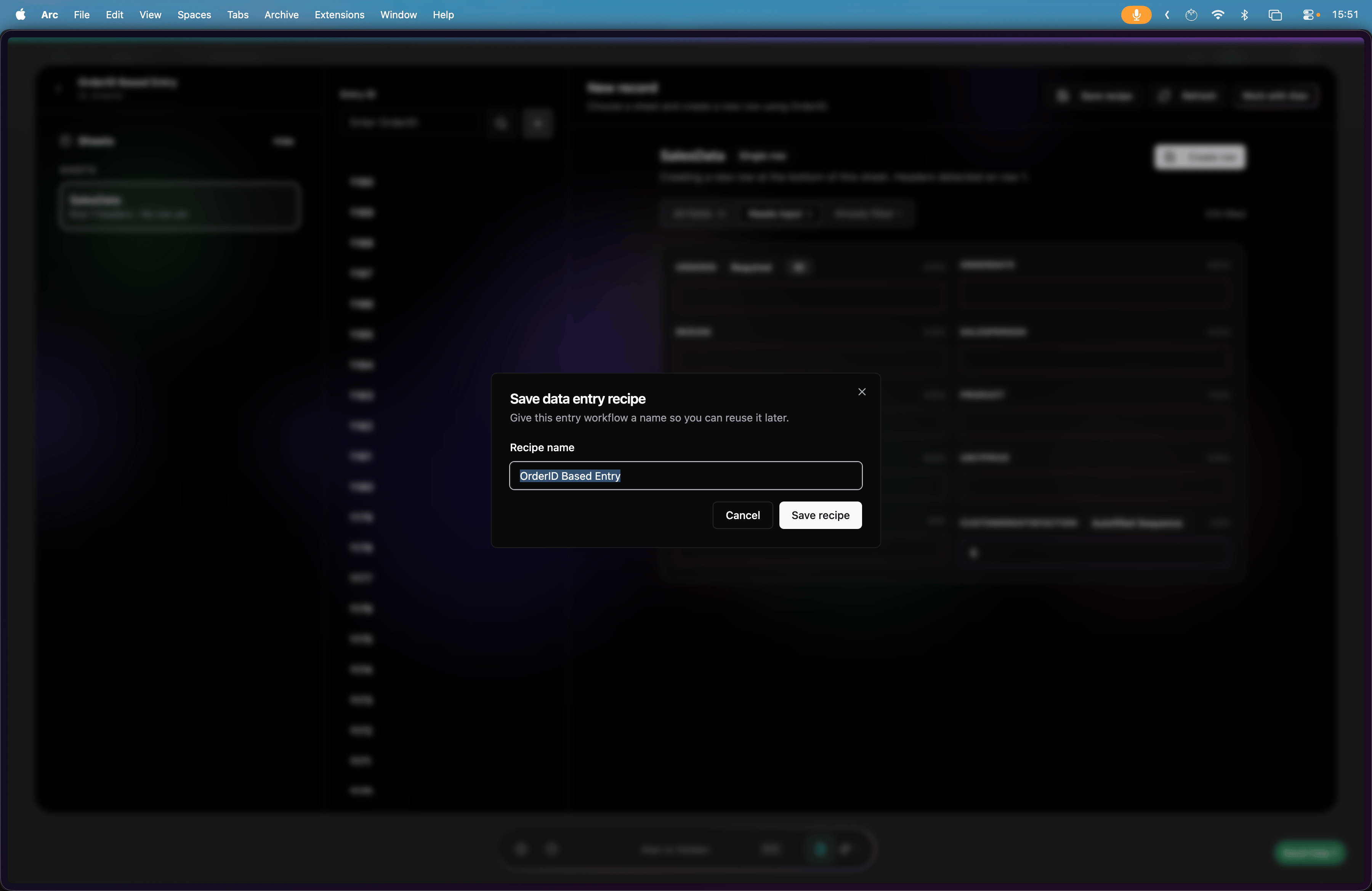
Use Data Entry for spreadsheet-style workspaces to add new rows without scanning the whole sheet. Pick a unique key column, review matching rows, and save the workflow as a recipe.

Choose the primary key column to start an entry workflow.
<Frame>
  <img src="https://mintcdn.com/papermap/Oxoh6AiWL3bk5Nkq/features/images/data_entry_section_showing_primary_key_to_add_by.png?fit=max&auto=format&n=Oxoh6AiWL3bk5Nkq&q=85&s=33b556b1c2e9eeaab0f354a1d760e82e" alt="Choose the primary key for data entry" width="3600" height="2338" data-path="features/images/data_entry_section_showing_primary_key_to_add_by.png" />
</Frame>

View all columns and spot duplicates before you add or edit rows.
<Frame>
  <img src="https://mintcdn.com/papermap/Oxoh6AiWL3bk5Nkq/features/images/viewing_all_columns_and_seeing_duplicates.png?fit=max&auto=format&n=Oxoh6AiWL3bk5Nkq&q=85&s=d86187704460a4e52258de6859fafc70" alt="View all columns and duplicates" width="3600" height="2338" data-path="features/images/viewing_all_columns_and_seeing_duplicates.png" />
</Frame>

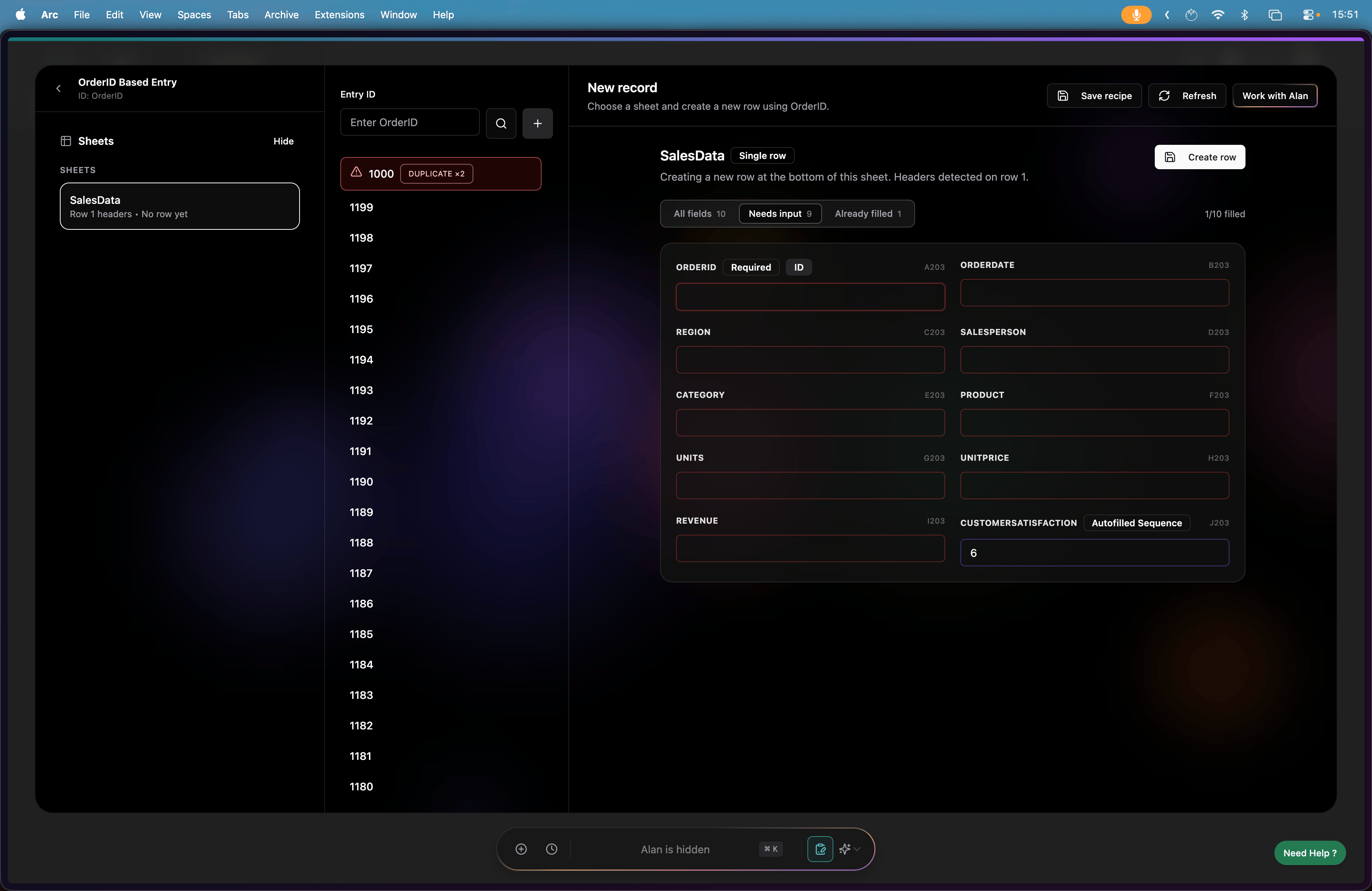
Add a new column or new record while the entry workflow is open.
<Frame>
  <img src="https://mintcdn.com/papermap/Oxoh6AiWL3bk5Nkq/features/images/adding_a_new_column.png?fit=max&auto=format&n=Oxoh6AiWL3bk5Nkq&q=85&s=629359c08b6573049f6b54b2f9ef244e" alt="Add a new column in data entry" width="3600" height="2338" data-path="features/images/adding_a_new_column.png" />
</Frame>

Save the workflow as a recipe so you can reuse the same unique column later.
<Frame>
  <img src="https://mintcdn.com/papermap/Oxoh6AiWL3bk5Nkq/features/images/saving_recipe.png?fit=max&auto=format&n=Oxoh6AiWL3bk5Nkq&q=85&s=07be7fa27c7765c53d07d82fe0aa9394" alt="Save a data entry recipe" width="3600" height="2338" data-path="features/images/saving_recipe.png" />
</Frame>

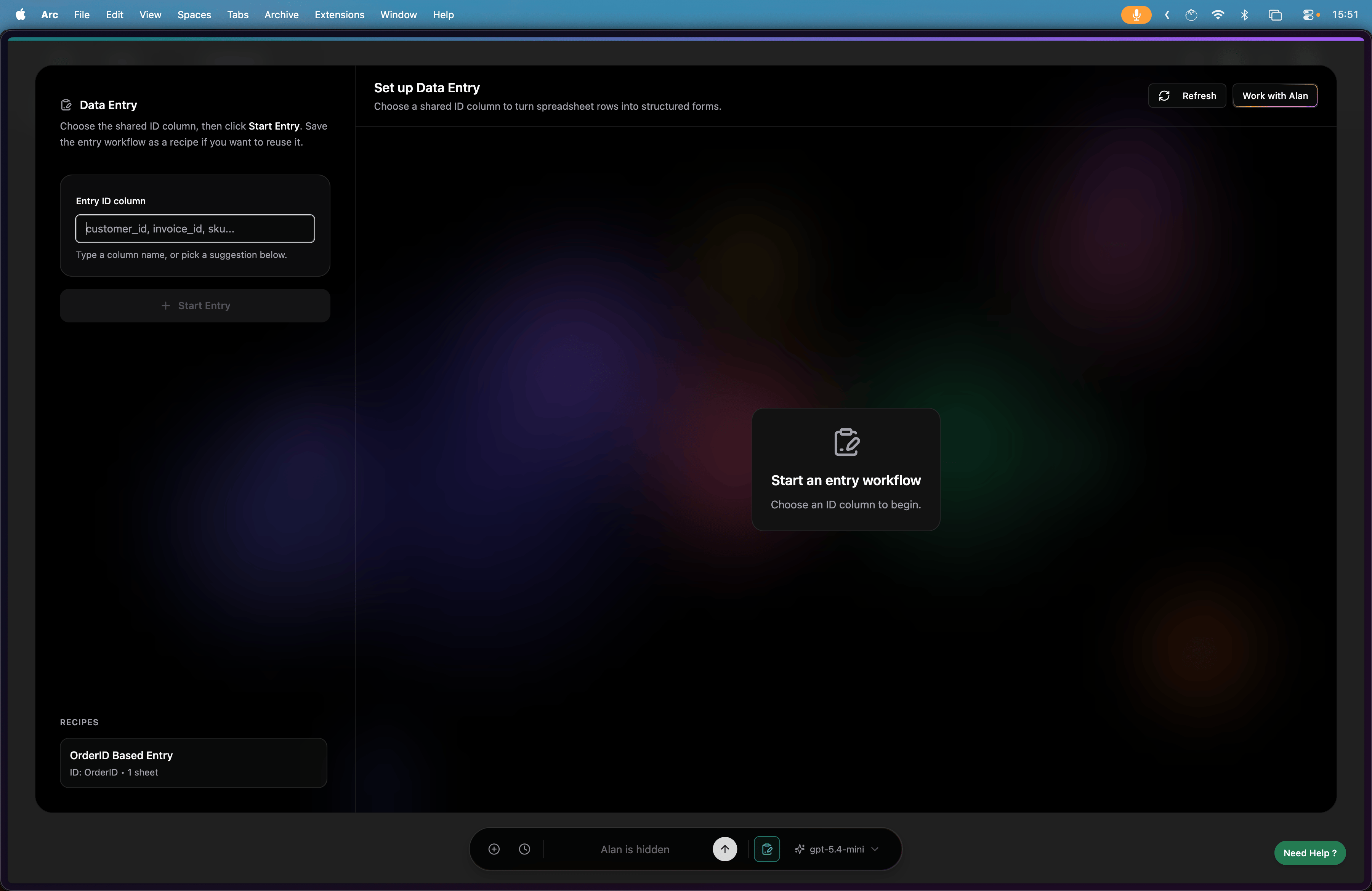
When you return to Data Entry, your saved recipes are ready to use.
<Frame>
  <img src="https://mintcdn.com/papermap/Oxoh6AiWL3bk5Nkq/features/images/viewing_saved_recipes.png?fit=max&auto=format&n=Oxoh6AiWL3bk5Nkq&q=85&s=cb5e95c01cb20b4a250dcbe386ec824b" alt="View saved data entry recipes" width="3600" height="2338" data-path="features/images/viewing_saved_recipes.png" />
</Frame>