> ## Documentation Index
> Fetch the complete documentation index at: https://docs.papermap.ai/llms.txt
> Use this file to discover all available pages before exploring further.
# TUI Workspaces
> Switch workspaces, create database-backed workspaces, list available workspaces, and understand the local workspace cache.
Workspaces decide which data Papermap can query. The TUI launches into your unified workspace when available, then lets you switch to any workspace visible to your account.
## Switch workspaces
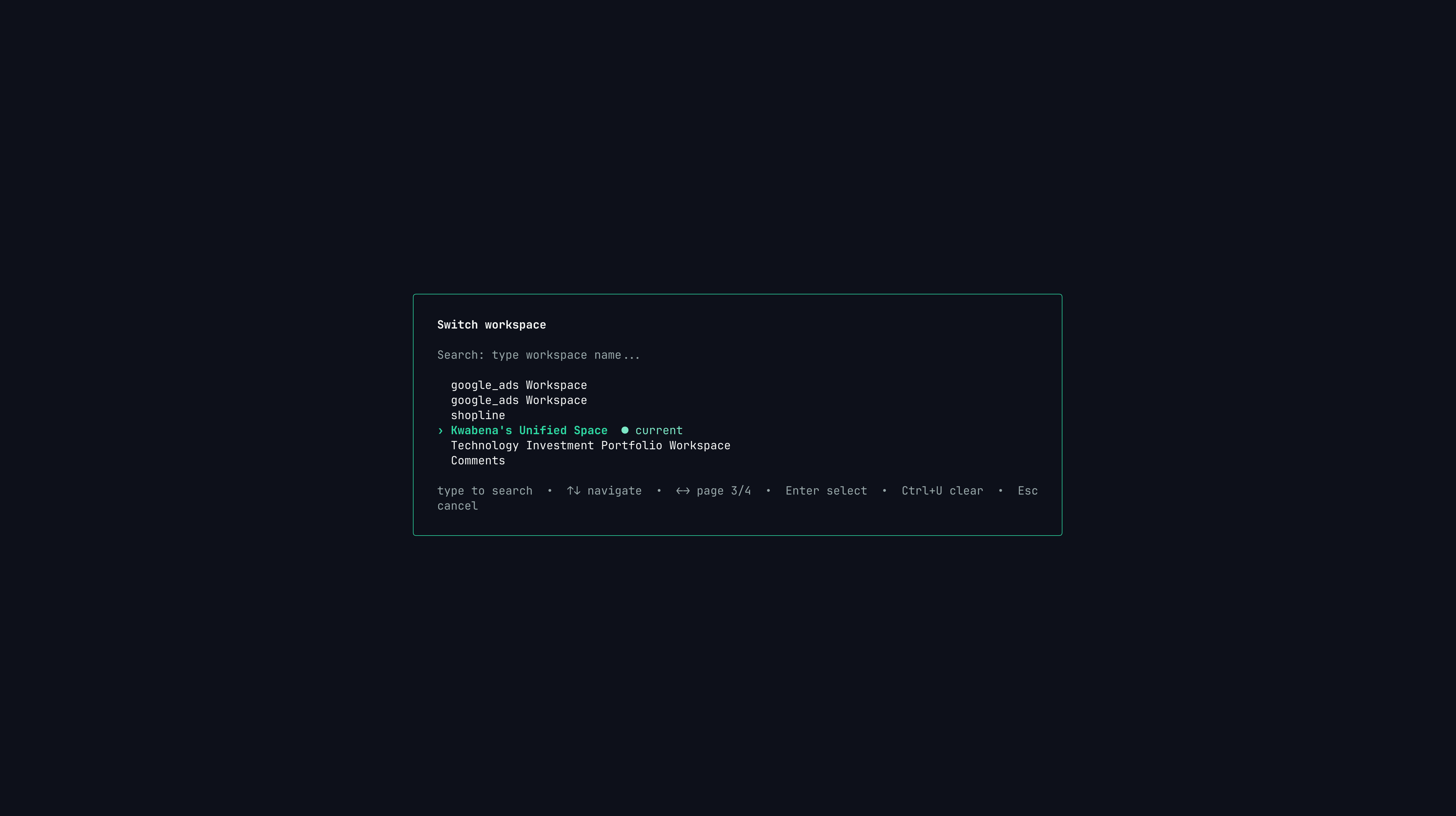 Press `Ctrl+W` from the chat screen to open the workspace picker.
| Key | Action |
| ----------------- | ---------------------------- |
| Type text | Filter by workspace name |
| `Up`, `Ctrl+P` | Move up |
| `Down`, `Ctrl+N` | Move down |
| `Left`, `PgUp` | Previous page |
| `Right`, `PgDown` | Next page |
| `Home` | Jump to first workspace |
| `End` | Jump to last workspace |
| `Ctrl+U` | Clear search |
| `Enter` | Switch to selected workspace |
| `Esc` | Cancel |
The current workspace is marked in the picker. Unified workspaces are also labeled so you can quickly return to the combined view.
## List workspaces from the CLI
```bash theme={null}
papermap workspace list
```
The command prints a tab-aligned table of workspaces visible to your account.
```text theme={null}
ID NAME TYPE UNIFIED
ws_123 Acme Production DB POSTGRES no
ws_unified Unified Workspace unified yes
```
Use `--api-url` when testing against a non-default API host.
```bash theme={null}
papermap workspace list --api-url https://prod.dataapi.papermap.ai
```
## Create a database workspace
```bash theme={null}
papermap workspace create
```
The TUI opens an interactive form and asks for:
| Field | Notes |
| -------------- | ---------------------------------------------- |
| Workspace name | Human-readable name shown in Papermap |
| Database type | `Postgres`, `MySQL`, `MongoDB`, or `Supabase` |
| Host | Database host name or address |
| Port | Optional; defaults by database type when blank |
| Database name | Database to connect |
| Username | Database username |
| Password | Hidden password input |
Default ports:
| Database | Default port |
| -------- | ------------ |
| Postgres | `5432` |
| MySQL | `3306` |
| MongoDB | `27017` |
| Supabase | `5432` |
After submission, Papermap creates the workspace row and verifies the database connection asynchronously.
```text theme={null}
Workspace "Acme Production DB" created (id: ws_123).
Verifying connection in background.
```
The command returns when the workspace is created. Connection verification continues in the background.
## Local workspace cache
The TUI caches workspace metadata locally so launch and switching feel fast.
```text theme={null}
~/.papermap/workspaces.json
```
`papermap workspace create` and `papermap workspace list` refresh this cache. `papermap auth logout` clears it.
If the cache is stale, run:
```bash theme={null}
papermap workspace list
```
Then relaunch the TUI:
```bash theme={null}
papermap
```
## What belongs in the web app?
The CLI supports standard database workspace creation today. Use the Papermap web app for flows that need browser-based authorization or richer setup screens.
Stripe, QuickBooks, Google Ads, and similar OAuth-backed sources should be created from the web app.
Sheets and CSV uploads should be configured from the web app.
Use the web app when you need drag-and-drop dashboard building or broader workspace administration.
Manage plans, users, permissions, and billing from the web app.
## Next steps
Learn workspace shortcuts, history, model switching, and shell mode.
Fix missing workspaces, stale cache, login, and shell errors.
Press `Ctrl+W` from the chat screen to open the workspace picker.
| Key | Action |
| ----------------- | ---------------------------- |
| Type text | Filter by workspace name |
| `Up`, `Ctrl+P` | Move up |
| `Down`, `Ctrl+N` | Move down |
| `Left`, `PgUp` | Previous page |
| `Right`, `PgDown` | Next page |
| `Home` | Jump to first workspace |
| `End` | Jump to last workspace |
| `Ctrl+U` | Clear search |
| `Enter` | Switch to selected workspace |
| `Esc` | Cancel |
The current workspace is marked in the picker. Unified workspaces are also labeled so you can quickly return to the combined view.
## List workspaces from the CLI
```bash theme={null}
papermap workspace list
```
The command prints a tab-aligned table of workspaces visible to your account.
```text theme={null}
ID NAME TYPE UNIFIED
ws_123 Acme Production DB POSTGRES no
ws_unified Unified Workspace unified yes
```
Use `--api-url` when testing against a non-default API host.
```bash theme={null}
papermap workspace list --api-url https://prod.dataapi.papermap.ai
```
## Create a database workspace
```bash theme={null}
papermap workspace create
```
The TUI opens an interactive form and asks for:
| Field | Notes |
| -------------- | ---------------------------------------------- |
| Workspace name | Human-readable name shown in Papermap |
| Database type | `Postgres`, `MySQL`, `MongoDB`, or `Supabase` |
| Host | Database host name or address |
| Port | Optional; defaults by database type when blank |
| Database name | Database to connect |
| Username | Database username |
| Password | Hidden password input |
Default ports:
| Database | Default port |
| -------- | ------------ |
| Postgres | `5432` |
| MySQL | `3306` |
| MongoDB | `27017` |
| Supabase | `5432` |
After submission, Papermap creates the workspace row and verifies the database connection asynchronously.
```text theme={null}
Workspace "Acme Production DB" created (id: ws_123).
Verifying connection in background.
```
The command returns when the workspace is created. Connection verification continues in the background.
## Local workspace cache
The TUI caches workspace metadata locally so launch and switching feel fast.
```text theme={null}
~/.papermap/workspaces.json
```
`papermap workspace create` and `papermap workspace list` refresh this cache. `papermap auth logout` clears it.
If the cache is stale, run:
```bash theme={null}
papermap workspace list
```
Then relaunch the TUI:
```bash theme={null}
papermap
```
## What belongs in the web app?
The CLI supports standard database workspace creation today. Use the Papermap web app for flows that need browser-based authorization or richer setup screens.
Stripe, QuickBooks, Google Ads, and similar OAuth-backed sources should be created from the web app.
Sheets and CSV uploads should be configured from the web app.
Use the web app when you need drag-and-drop dashboard building or broader workspace administration.
Manage plans, users, permissions, and billing from the web app.
## Next steps
Learn workspace shortcuts, history, model switching, and shell mode.
Fix missing workspaces, stale cache, login, and shell errors.