> ## Documentation Index
> Fetch the complete documentation index at: https://docs.papermap.ai/llms.txt
> Use this file to discover all available pages before exploring further.
# Terminal UI Overview
> Use Papermap directly from your terminal with keyboard-first analytics, streamed insights, workspaces, model switching, and shell mode.
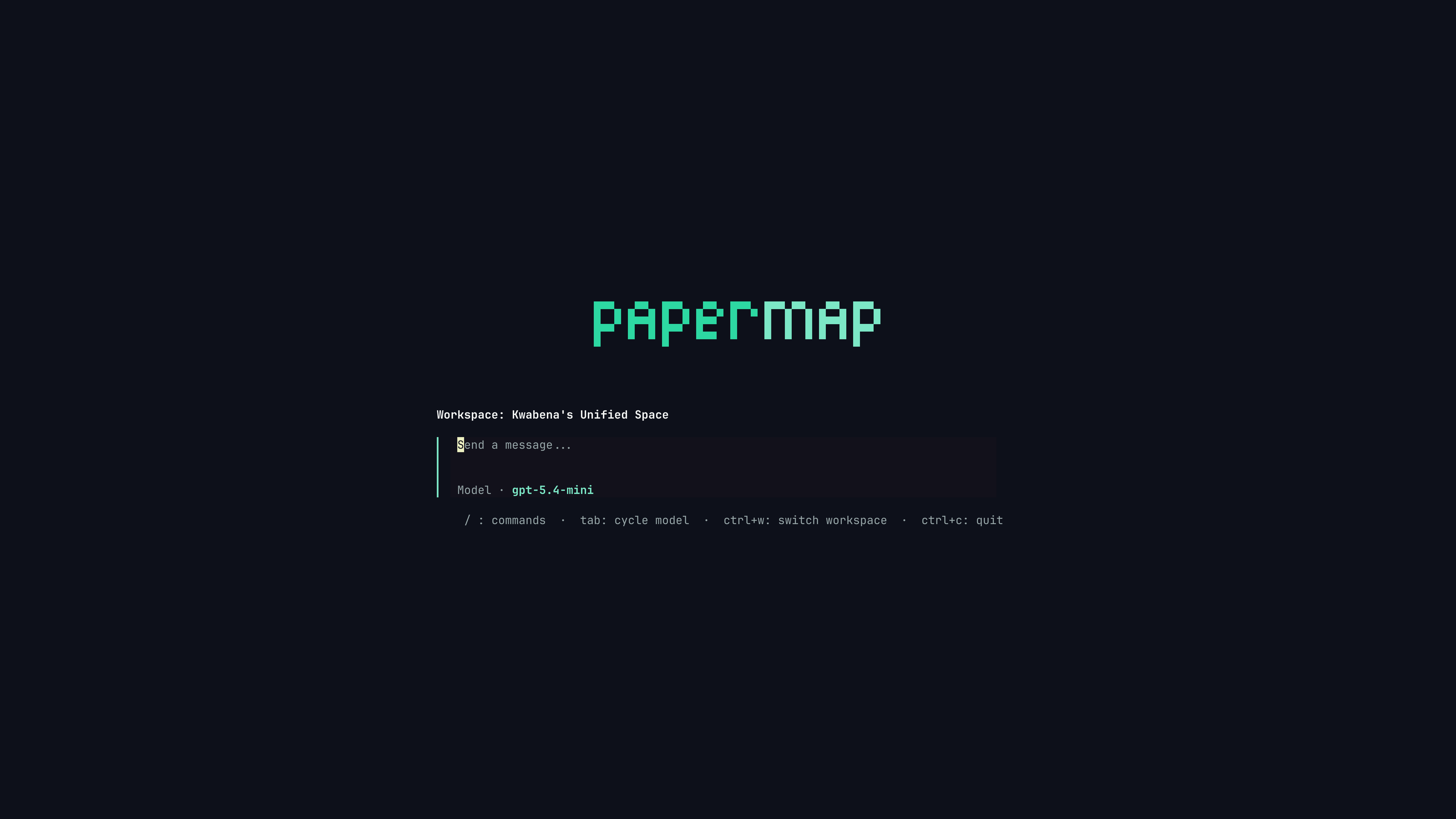
Papermap TUI gives you terminal-native access to Papermap. Sign in once, launch `papermap`, choose your workspace, ask questions, and watch streamed insight responses render without leaving your command line.
 ## Why use the TUI?
Stay in the terminal, ask natural-language data questions, and move through workspaces, chats, models, and tools with shortcuts.
See progress while Papermap works. Narrative answers, tables, tiles, charts, and reasoning traces render as the request completes.
Launch into your unified workspace by default, then switch to any visible workspace with a searchable picker.
Run one-shot shell commands, copy transcript selections, browse conversation history, and switch LLM models in place.
## Typical workflow
Install `papermap` with Homebrew, the install script, `go install`, or a source build. See [Install the TUI](/documentation/tui/install).
Run `papermap auth login`. The default flow opens Papermap in your browser and returns a short-lived CLI code to your local terminal callback.
Run `papermap`. If your session is valid, Papermap opens directly into the chat workspace.
Submit prompts with `Enter`, use `/` for the command palette, `Ctrl+W` to switch workspaces, and `Ctrl+P` to reopen prior conversations.
## What the TUI can do
Send prompts from the chat input and receive streamed Papermap answers in your terminal.
Papermap renders structured responses as readable terminal tables, tiles, and chart summaries.
Open prior chats for the active dashboard, page through history, and load the conversation you need.
Create Postgres, MySQL, MongoDB, and Supabase workspaces from interactive CLI forms.
The TUI is intentionally focused on terminal workflows: login, workspace selection, conversations, streamed insights, model selection, and shell mode. Use the Papermap web app for broader workspace administration, OAuth integrations, CSV or Sheets uploads, billing, and visual dashboard editing.
## Next steps
Choose the install path that matches your machine and launch `papermap`.
Learn browser login, password fallback, credential storage, and logout behavior.
Master shortcuts, command palette, streaming, conversations, model switching, and shell mode.
Set API URLs, frontend URLs, default thinking traces, selected model, and Windows shell behavior.
## Why use the TUI?
Stay in the terminal, ask natural-language data questions, and move through workspaces, chats, models, and tools with shortcuts.
See progress while Papermap works. Narrative answers, tables, tiles, charts, and reasoning traces render as the request completes.
Launch into your unified workspace by default, then switch to any visible workspace with a searchable picker.
Run one-shot shell commands, copy transcript selections, browse conversation history, and switch LLM models in place.
## Typical workflow
Install `papermap` with Homebrew, the install script, `go install`, or a source build. See [Install the TUI](/documentation/tui/install).
Run `papermap auth login`. The default flow opens Papermap in your browser and returns a short-lived CLI code to your local terminal callback.
Run `papermap`. If your session is valid, Papermap opens directly into the chat workspace.
Submit prompts with `Enter`, use `/` for the command palette, `Ctrl+W` to switch workspaces, and `Ctrl+P` to reopen prior conversations.
## What the TUI can do
Send prompts from the chat input and receive streamed Papermap answers in your terminal.
Papermap renders structured responses as readable terminal tables, tiles, and chart summaries.
Open prior chats for the active dashboard, page through history, and load the conversation you need.
Create Postgres, MySQL, MongoDB, and Supabase workspaces from interactive CLI forms.
The TUI is intentionally focused on terminal workflows: login, workspace selection, conversations, streamed insights, model selection, and shell mode. Use the Papermap web app for broader workspace administration, OAuth integrations, CSV or Sheets uploads, billing, and visual dashboard editing.
## Next steps
Choose the install path that matches your machine and launch `papermap`.
Learn browser login, password fallback, credential storage, and logout behavior.
Master shortcuts, command palette, streaming, conversations, model switching, and shell mode.
Set API URLs, frontend URLs, default thinking traces, selected model, and Windows shell behavior.