> ## Documentation Index
> Fetch the complete documentation index at: https://docs.papermap.ai/llms.txt
> Use this file to discover all available pages before exploring further.
# Navigate the TUI
> Use Papermap TUI shortcuts, command palette, streamed answers, conversations, model switching, shell mode, and terminal selection.
Papermap TUI is designed for keyboard-first work. Most actions are available through direct shortcuts and through the `/` command palette.
## Main chat screen
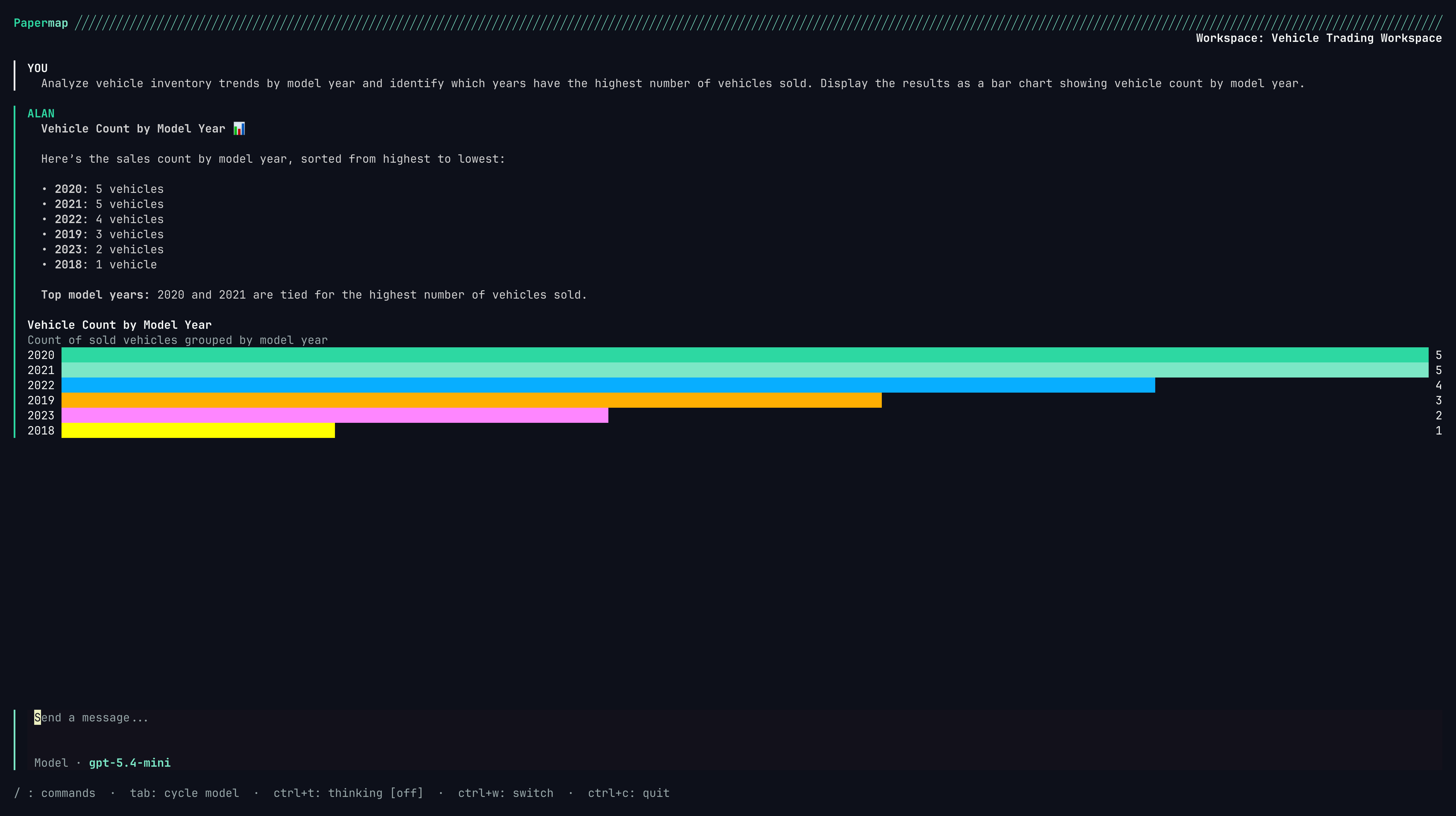 Type a question in the input and press `Enter`. Papermap sends the prompt to the active workspace and streams progress into the transcript.
Examples:
```text theme={null}
Show monthly revenue by customer segment for the last two quarters.
Which products had the highest refund rate last month?
Summarize open invoices over $5,000 and group them by owner.
```
The response can include narrative text, reasoning trace previews, structured tables, tiles, and terminal-friendly chart output.
## Essential shortcuts
| Key | Action |
| -------- | ---------------------------------------------------------------------------- |
| `Enter` | Submit prompt or confirm a focused modal action |
| `/` | Open command palette when the input is empty |
| `Ctrl+P` | Open conversation history for the active dashboard |
| `Ctrl+W` | Open workspace picker |
| `Tab` | Cycle to the next available LLM model |
| `Ctrl+T` | Toggle thinking traces on or off |
| `Ctrl+L` | Clear chat and start a fresh session |
| `Esc` | Cancel streaming, exit shell mode, close overlays, or clear active selection |
| `Ctrl+C` | Quit with confirmation |
| `!` | Enter shell mode when the input is empty |
`/` only opens the command palette when the input is empty. If you already typed text, `/` stays part of your prompt.
## Command palette
Type a question in the input and press `Enter`. Papermap sends the prompt to the active workspace and streams progress into the transcript.
Examples:
```text theme={null}
Show monthly revenue by customer segment for the last two quarters.
Which products had the highest refund rate last month?
Summarize open invoices over $5,000 and group them by owner.
```
The response can include narrative text, reasoning trace previews, structured tables, tiles, and terminal-friendly chart output.
## Essential shortcuts
| Key | Action |
| -------- | ---------------------------------------------------------------------------- |
| `Enter` | Submit prompt or confirm a focused modal action |
| `/` | Open command palette when the input is empty |
| `Ctrl+P` | Open conversation history for the active dashboard |
| `Ctrl+W` | Open workspace picker |
| `Tab` | Cycle to the next available LLM model |
| `Ctrl+T` | Toggle thinking traces on or off |
| `Ctrl+L` | Clear chat and start a fresh session |
| `Esc` | Cancel streaming, exit shell mode, close overlays, or clear active selection |
| `Ctrl+C` | Quit with confirmation |
| `!` | Enter shell mode when the input is empty |
`/` only opens the command palette when the input is empty. If you already typed text, `/` stays part of your prompt.
## Command palette
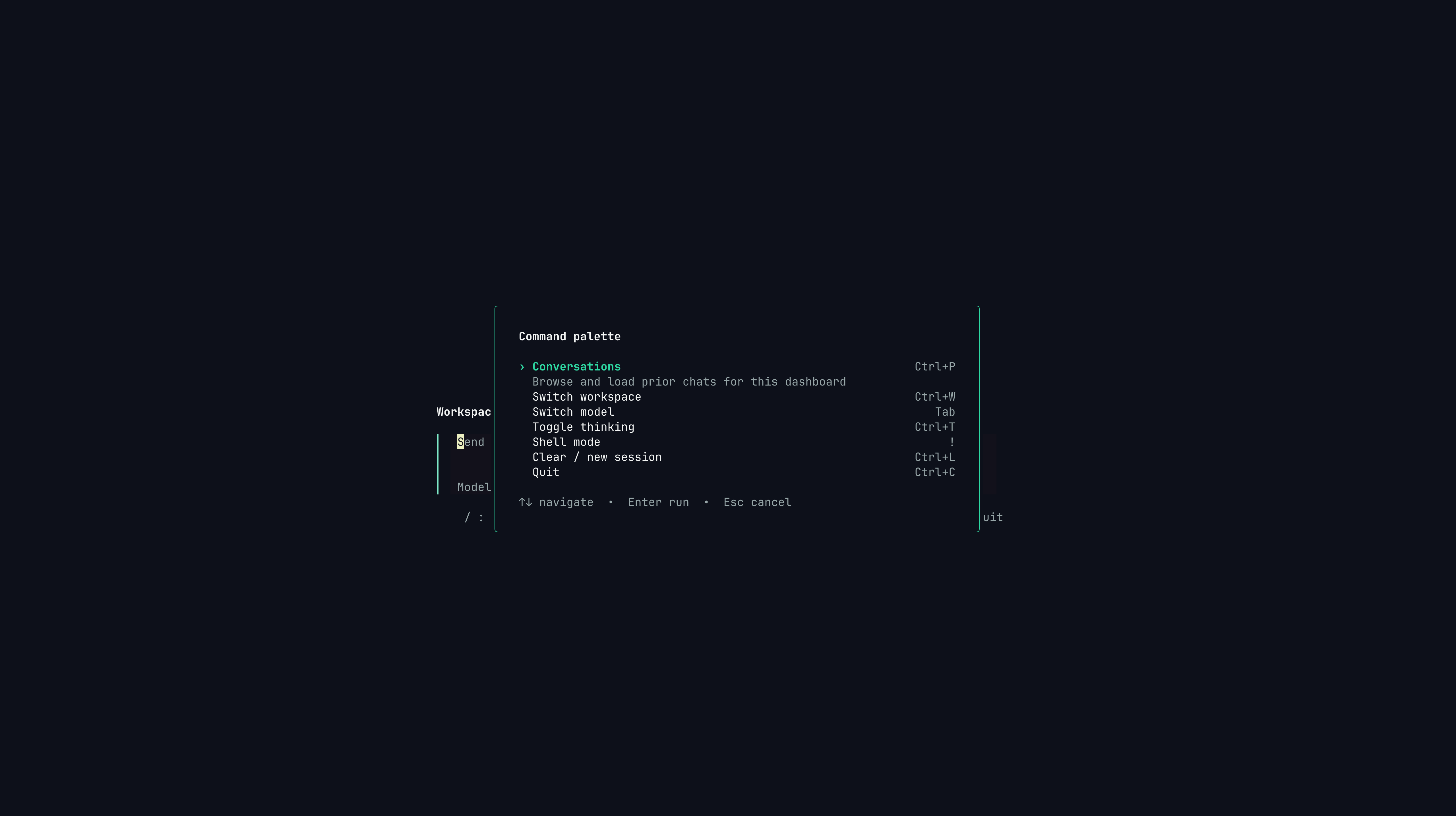 Open the palette with `/` from an empty prompt. It exposes the main actions in one place.
| Command | Shortcut | What it does |
| ------------------- | -------- | --------------------------------------- |
| Conversations | `Ctrl+P` | Browse and load prior chats |
| Switch workspace | `Ctrl+W` | Change the active workspace |
| Switch model | `Tab` | Choose or cycle the LLM model |
| Toggle thinking | `Ctrl+T` | Show or hide assistant reasoning traces |
| Shell mode | `!` | Run a one-shot terminal command |
| Clear / new session | `Ctrl+L` | Drop the current chat and start fresh |
| Quit | `Ctrl+C` | Exit Papermap |
Use arrow keys to move, `Enter` to run the highlighted command, and `Esc` to close the palette.
## Streaming and cancellation
While an insight is running, the transcript can show a live status line, a pending assistant response, reasoning events, tool lifecycle events, and final output.
Use `Esc` to cancel an in-flight insight. The TUI tears down the local stream and asks the backend to cancel the run.
If backend cancellation fails after local cancellation succeeds, Papermap shows a non-blocking notice. Your terminal session remains usable.
## Thinking traces
Thinking traces show the assistant's reasoning and tool activity. Toggle them with `Ctrl+T`.
| State | Behavior |
| ------- | -------------------------------------------------------------------------------------- |
| Hidden | Shows minimal live progress while streaming, then hides trace details after completion |
| Visible | Shows the full reasoning/tool timeline while streaming and after completion |
You can set the default in `~/.papermap/config.yaml` with `show_thinking: true`. See [Configuration](/documentation/tui/configuration).
## Conversations history
Open the palette with `/` from an empty prompt. It exposes the main actions in one place.
| Command | Shortcut | What it does |
| ------------------- | -------- | --------------------------------------- |
| Conversations | `Ctrl+P` | Browse and load prior chats |
| Switch workspace | `Ctrl+W` | Change the active workspace |
| Switch model | `Tab` | Choose or cycle the LLM model |
| Toggle thinking | `Ctrl+T` | Show or hide assistant reasoning traces |
| Shell mode | `!` | Run a one-shot terminal command |
| Clear / new session | `Ctrl+L` | Drop the current chat and start fresh |
| Quit | `Ctrl+C` | Exit Papermap |
Use arrow keys to move, `Enter` to run the highlighted command, and `Esc` to close the palette.
## Streaming and cancellation
While an insight is running, the transcript can show a live status line, a pending assistant response, reasoning events, tool lifecycle events, and final output.
Use `Esc` to cancel an in-flight insight. The TUI tears down the local stream and asks the backend to cancel the run.
If backend cancellation fails after local cancellation succeeds, Papermap shows a non-blocking notice. Your terminal session remains usable.
## Thinking traces
Thinking traces show the assistant's reasoning and tool activity. Toggle them with `Ctrl+T`.
| State | Behavior |
| ------- | -------------------------------------------------------------------------------------- |
| Hidden | Shows minimal live progress while streaming, then hides trace details after completion |
| Visible | Shows the full reasoning/tool timeline while streaming and after completion |
You can set the default in `~/.papermap/config.yaml` with `show_thinking: true`. See [Configuration](/documentation/tui/configuration).
## Conversations history
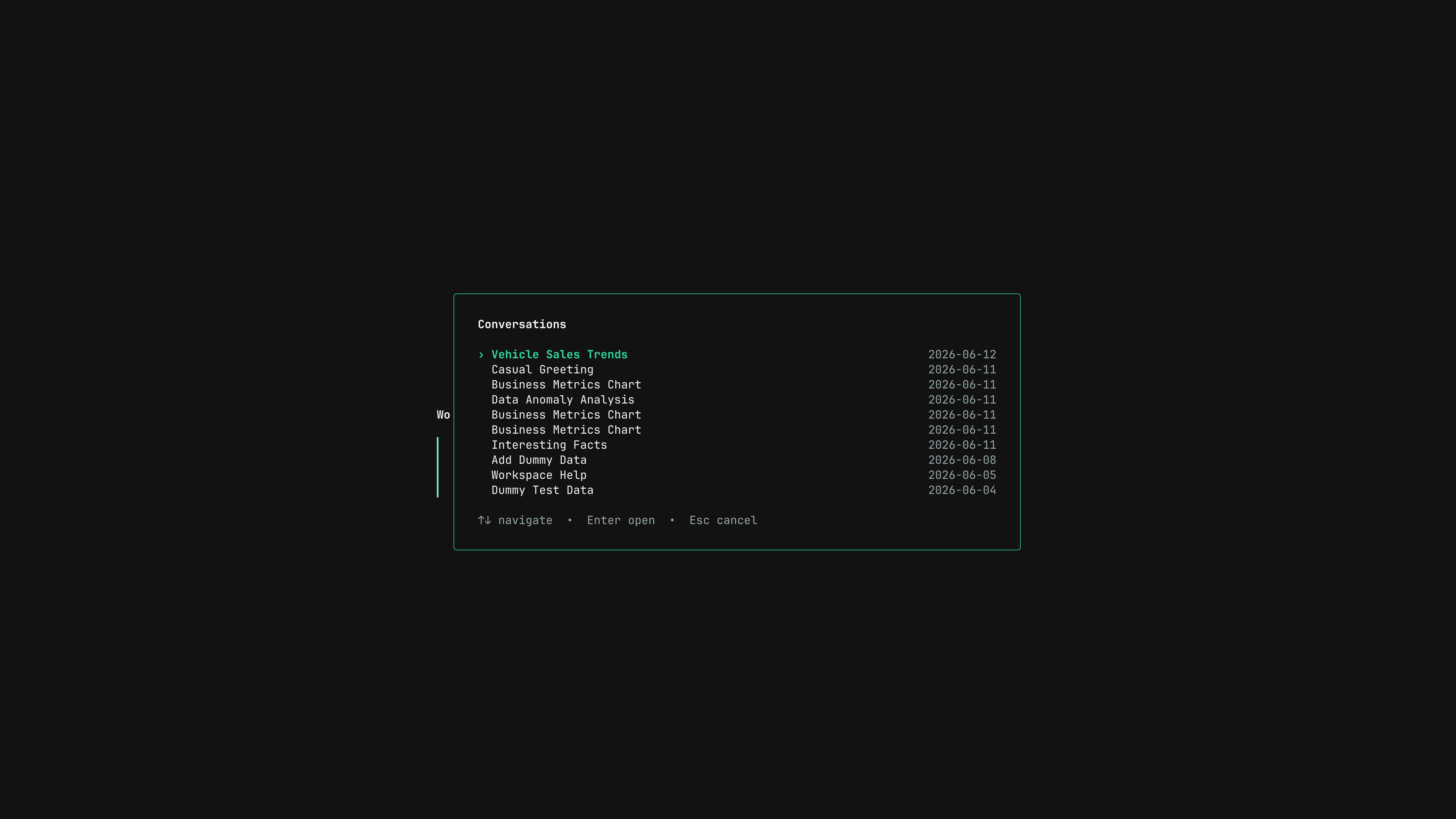 Open history with `Ctrl+P`. The overlay loads previous chats for the current dashboard and fetches more pages as needed.
| Key | Action |
| --------------------- | -------------------------------- |
| `Up`, `k` | Move up |
| `Down`, `j`, `Ctrl+N` | Move down |
| `Home`, `g` | Jump to first conversation |
| `End`, `G` | Jump to last loaded conversation |
| `Enter` | Open selected conversation |
| `Esc` | Close without changing chat |
If you move past the bottom and more pages exist, the TUI loads more conversations automatically.
## Model switching
Open history with `Ctrl+P`. The overlay loads previous chats for the current dashboard and fetches more pages as needed.
| Key | Action |
| --------------------- | -------------------------------- |
| `Up`, `k` | Move up |
| `Down`, `j`, `Ctrl+N` | Move down |
| `Home`, `g` | Jump to first conversation |
| `End`, `G` | Jump to last loaded conversation |
| `Enter` | Open selected conversation |
| `Esc` | Close without changing chat |
If you move past the bottom and more pages exist, the TUI loads more conversations automatically.
## Model switching
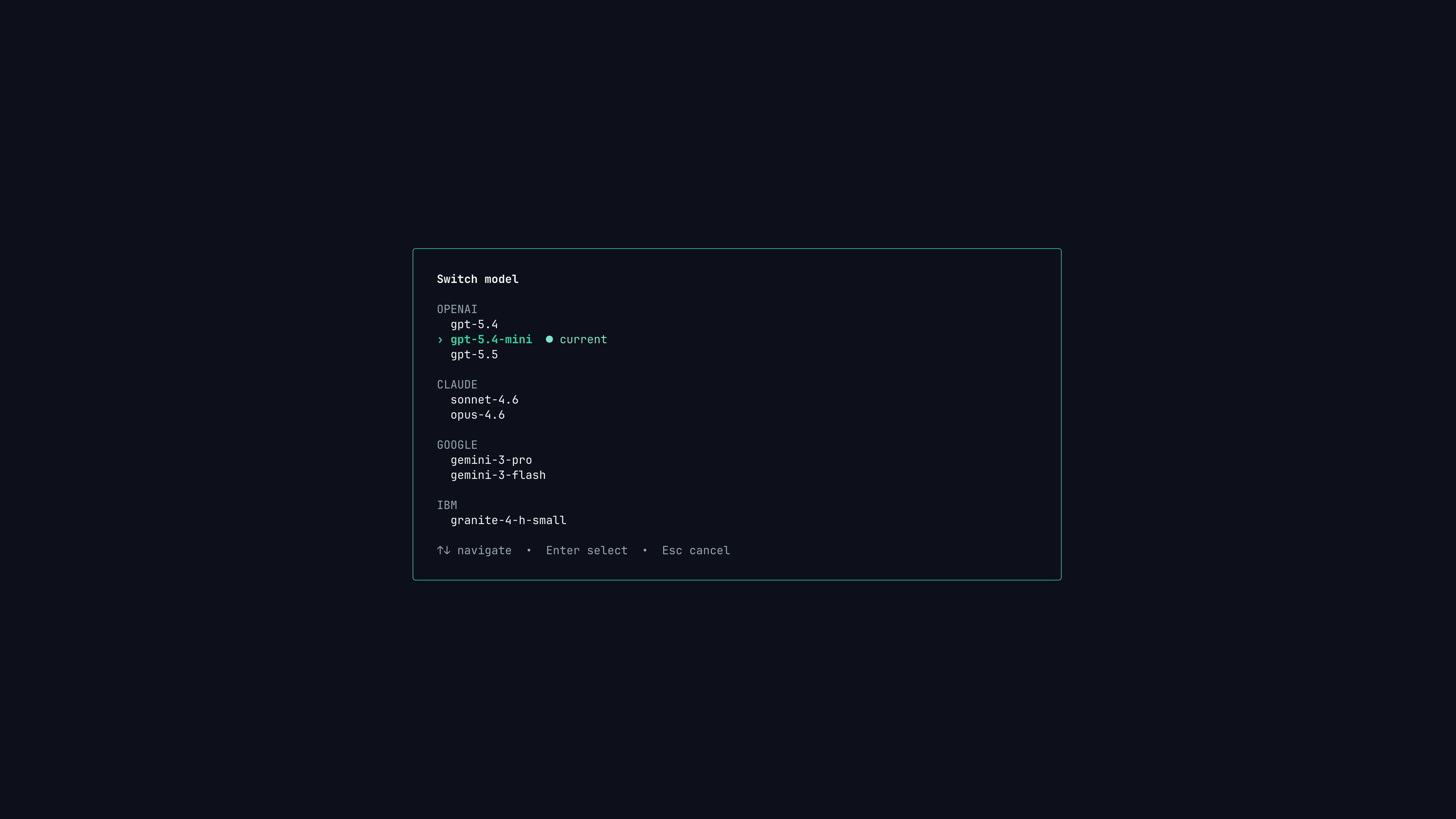 Press `Tab` to cycle through available models. Use the command palette's `Switch model` command when you want a visible picker.
| Key | Action |
| --------------------------- | ------------------------ |
| `Up`, `k`, `Ctrl+P` | Move up |
| `Down`, `j`, `Ctrl+N` | Move down |
| `Left`, `h`, `PgUp`, `p` | Previous model page |
| `Right`, `l`, `PgDown`, `n` | Next model page |
| `Home`, `g` | Jump to first model |
| `End`, `G` | Jump to last model |
| `Enter` | Select highlighted model |
| `Esc` | Cancel |
The selected model appears as a badge in the input area and is persisted in your config.
## Shell mode
Press `Tab` to cycle through available models. Use the command palette's `Switch model` command when you want a visible picker.
| Key | Action |
| --------------------------- | ------------------------ |
| `Up`, `k`, `Ctrl+P` | Move up |
| `Down`, `j`, `Ctrl+N` | Move down |
| `Left`, `h`, `PgUp`, `p` | Previous model page |
| `Right`, `l`, `PgDown`, `n` | Next model page |
| `Home`, `g` | Jump to first model |
| `End`, `G` | Jump to last model |
| `Enter` | Select highlighted model |
| `Esc` | Cancel |
The selected model appears as a badge in the input area and is persisted in your config.
## Shell mode
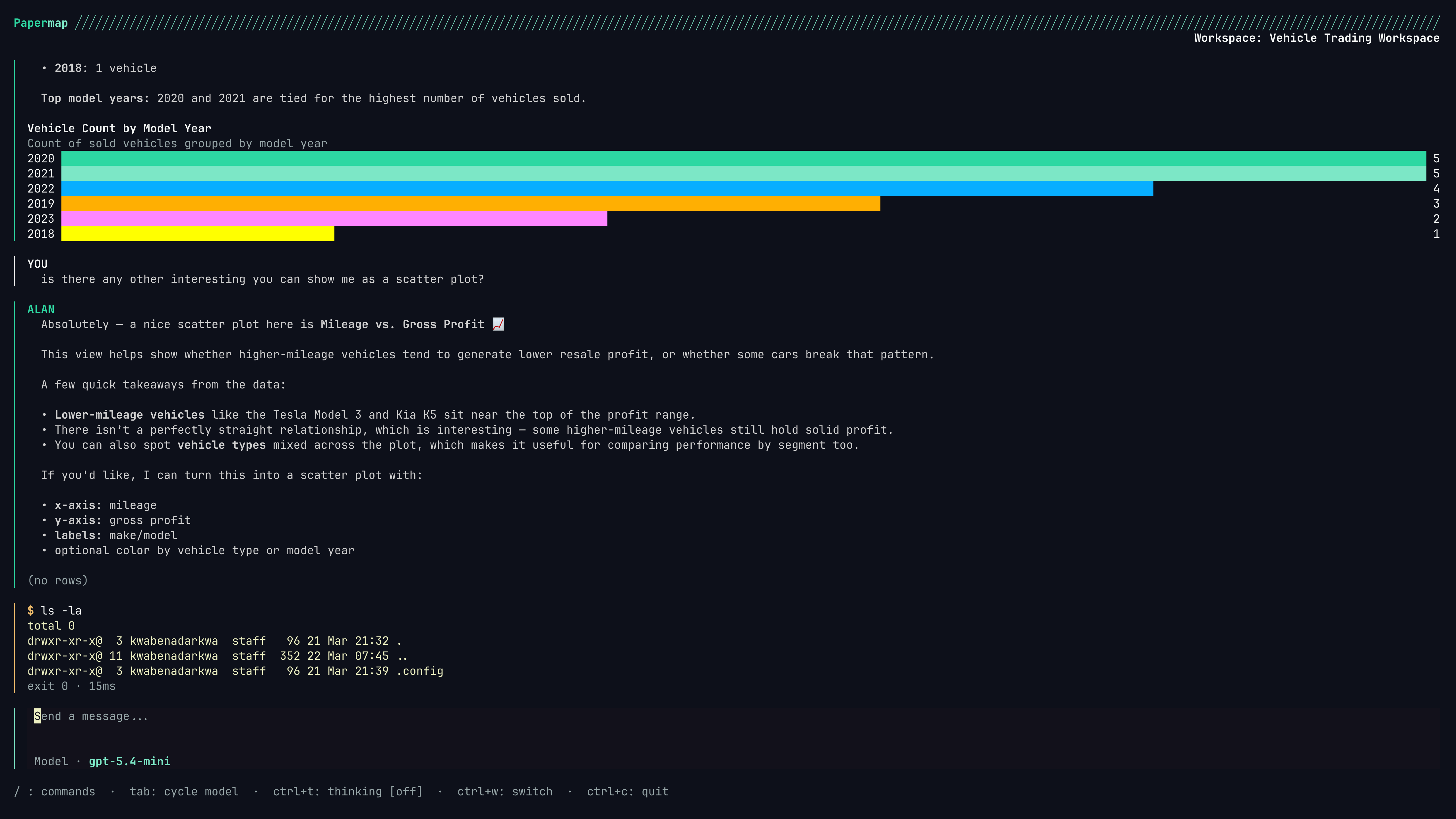 Shell mode runs a single command from inside the TUI. Type `!` at the start of an empty prompt, enter the command, then press `Enter`.
```text theme={null}
!ls -la
!git status
!psql --version
```
Shell results are local transcript turns. They are not persisted to Papermap chat history and are not sent as assistant prompts.
| Key | Action |
| ----------- | ---------------------------------------------- |
| `!` | Enter shell mode from an empty prompt |
| `Enter` | Run the typed command |
| `Esc` | Cancel running command or exit shell mode |
| `Backspace` | Exit shell mode when the shell prompt is empty |
Shell mode executes commands on your machine. Treat it like your normal terminal and avoid commands you would not run directly.
## Scrolling and selection
Use scroll keys while reviewing long responses.
| Key | Action |
| ------------------------ | -------------------- |
| `Shift+Up` | Scroll up one line |
| `Shift+Down` | Scroll down one line |
| `PgUp`, `Shift+PgUp` | Page up |
| `PgDown`, `Shift+PgDown` | Page down |
| `Home`, `Shift+Home` | Jump to top |
| `End`, `Shift+End` | Jump to bottom |
| `Ctrl+D` | Half page down |
| Mouse wheel | Scroll transcript |
You can drag over transcript text with the mouse to copy a selection to the clipboard. After release, Papermap shows a success toast and clears the highlight. Press `Esc` to clear an active selection without copying.
## Tool confirmations
Some privileged tool actions can require confirmation. When Papermap needs approval, the TUI opens a modal with the action description, available choices, hotkeys, and an optional countdown.
Use `Tab`, arrow keys, `h`, or `l` to change focus. Press `Enter` to choose the focused action. Press an action hotkey when shown. Press `Esc` to dismiss when the modal supports dismissal.
## Next steps
Switch, search, create, list, and cache Papermap workspaces from the terminal.
Fix common login, shell, workspace, and session issues.
Shell mode runs a single command from inside the TUI. Type `!` at the start of an empty prompt, enter the command, then press `Enter`.
```text theme={null}
!ls -la
!git status
!psql --version
```
Shell results are local transcript turns. They are not persisted to Papermap chat history and are not sent as assistant prompts.
| Key | Action |
| ----------- | ---------------------------------------------- |
| `!` | Enter shell mode from an empty prompt |
| `Enter` | Run the typed command |
| `Esc` | Cancel running command or exit shell mode |
| `Backspace` | Exit shell mode when the shell prompt is empty |
Shell mode executes commands on your machine. Treat it like your normal terminal and avoid commands you would not run directly.
## Scrolling and selection
Use scroll keys while reviewing long responses.
| Key | Action |
| ------------------------ | -------------------- |
| `Shift+Up` | Scroll up one line |
| `Shift+Down` | Scroll down one line |
| `PgUp`, `Shift+PgUp` | Page up |
| `PgDown`, `Shift+PgDown` | Page down |
| `Home`, `Shift+Home` | Jump to top |
| `End`, `Shift+End` | Jump to bottom |
| `Ctrl+D` | Half page down |
| Mouse wheel | Scroll transcript |
You can drag over transcript text with the mouse to copy a selection to the clipboard. After release, Papermap shows a success toast and clears the highlight. Press `Esc` to clear an active selection without copying.
## Tool confirmations
Some privileged tool actions can require confirmation. When Papermap needs approval, the TUI opens a modal with the action description, available choices, hotkeys, and an optional countdown.
Use `Tab`, arrow keys, `h`, or `l` to change focus. Press `Enter` to choose the focused action. Press an action hotkey when shown. Press `Esc` to dismiss when the modal supports dismissal.
## Next steps
Switch, search, create, list, and cache Papermap workspaces from the terminal.
Fix common login, shell, workspace, and session issues.